Installation

Install neonto Editor from the VS Code Marketplace and confirm which build of VS Code you're running, since that determines whether the MCP server is available.

Requirements

  • VS Code version 1.107.0 or later.
  • Desktop VS Code (Windows, macOS, or Linux) if you want to use the MCP server; see Desktop vs. web build below.

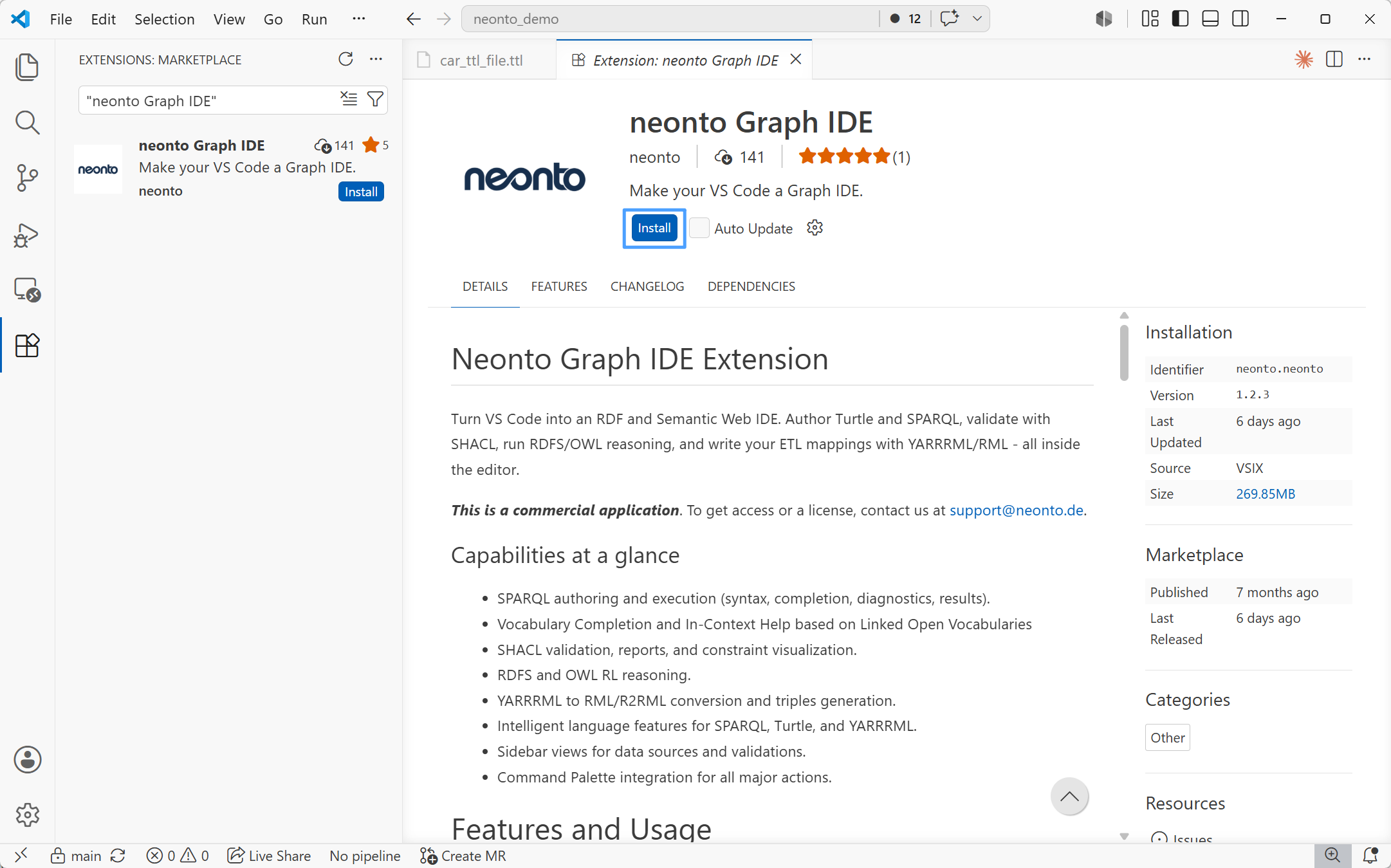
Install from the Marketplace

  1. Open the Extensions view in VS Code (Ctrl+Shift+X).
  2. Search for neonto Editor.
  3. Click Install.

The neonto Editor listing on the VS Code Marketplace with the Install button

Alternatively, via the Command Palette:

  1. Open the Command Palette (Ctrl+Shift+P / F1).
  2. Run Extensions: Install Extensions.
  3. Search for neonto and click Install.

After installation, the neonto icon appears in the Activity Bar.
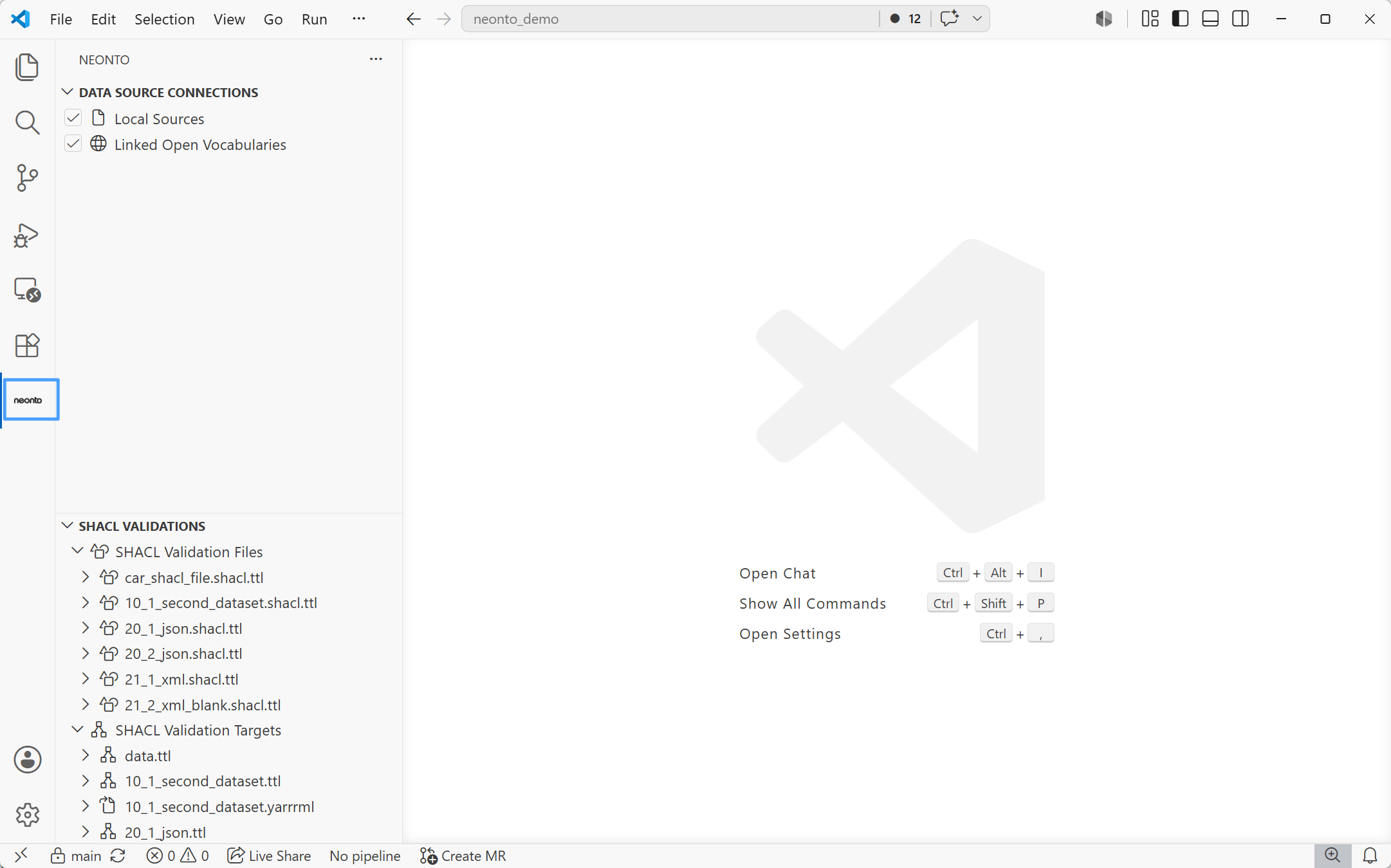
The neonto icon selected in the VS Code Activity Bar, showing the Data Source Connections and SHACL Validations views

Desktop vs. web build

neonto ships two runtime bundles:

  • A web/webworker bundle, which runs in any VS Code context, including vscode.dev and GitHub Codespaces in the browser. This bundle provides all editor language features — syntax highlighting, completion, hover, diagnostics, formatting, SHACL validation, reasoning, and YARRRML/RML tooling.
  • A Node extension-host bundle, which additionally starts the in-process MCP server.

The MCP server only runs in desktop VS Code. If you install neonto in a browser-only environment (vscode.dev, github.dev), the Node extension host is not available, so the MCP server does not start and AI-agent integration is unavailable. All other features — authoring, SHACL, reasoning, ETL — work the same in both environments.

See the Agentic AI Overview for details on connecting agents once you're running desktop VS Code.