Interface Tour
The neonto Activity Bar icon
neonto adds its own container to the VS Code Activity Bar (the vertical icon strip on the far left). Selecting it opens the neonto sidebar, which hosts two tree views stacked on top of each other.
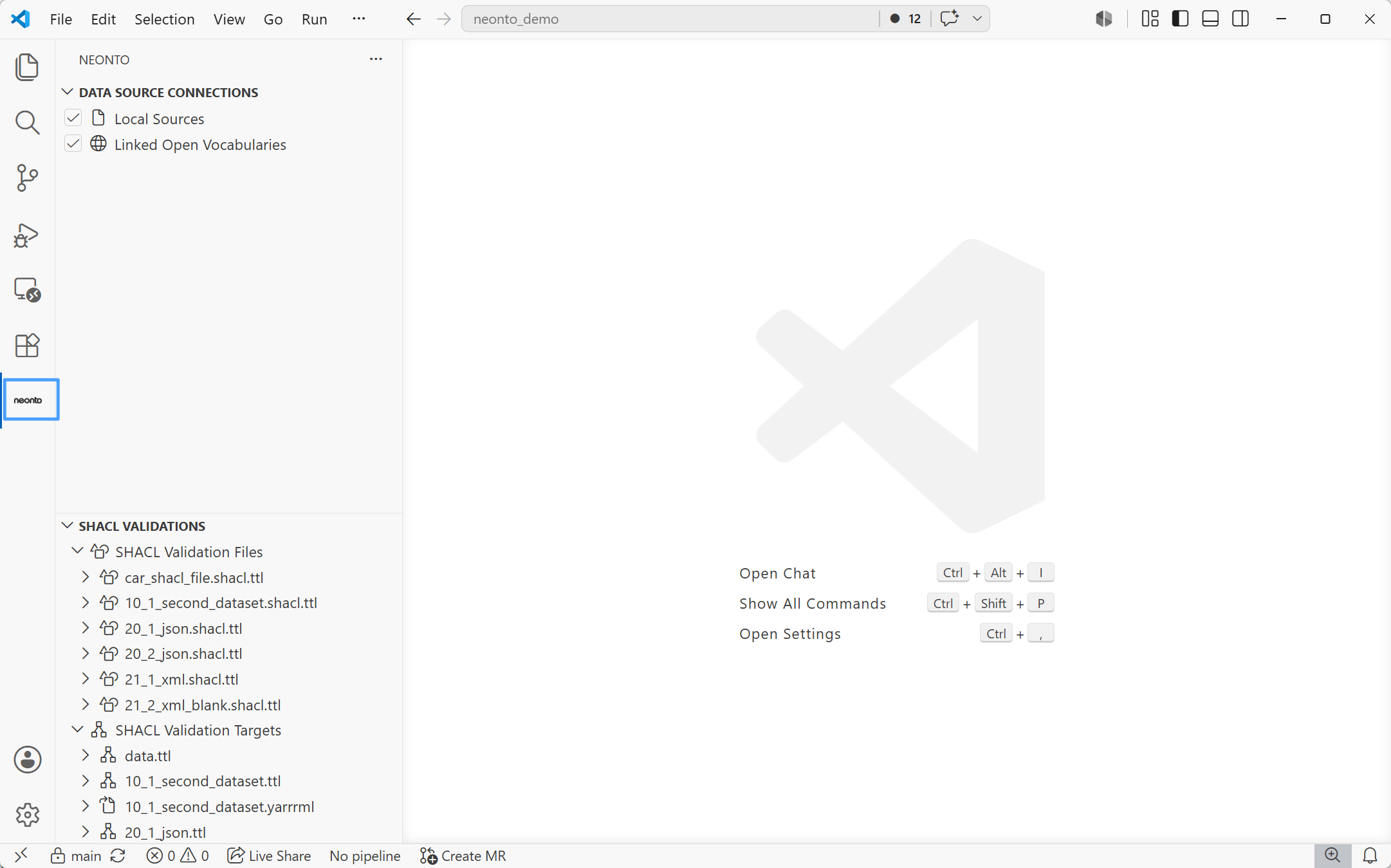
The two sidebar views
Data Source Connections
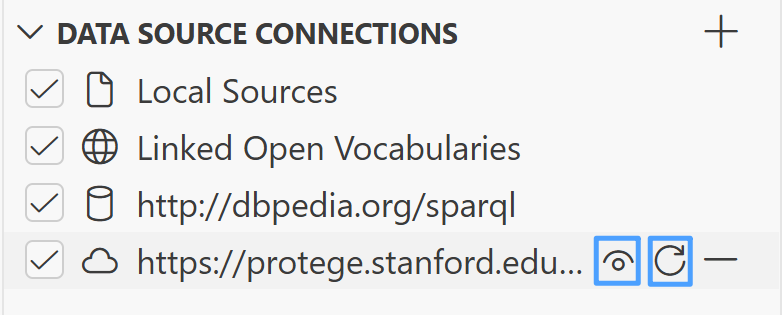
The Data Source Connections view lists every RDF source available for completion, hover, and SPARQL queries: RDF files in your workspace, SPARQL endpoints, remote RDF files over HTTP(S), and RDF files from elsewhere on disk, plus the built-in "Local Sources" and "Linked Open Vocabularies" entries. Each entry has a checkbox to toggle it active or passive, and inline icons for source-specific actions (preview, refresh, remove). A + button in the view title (Add Data Source) opens a quick pick to add a new source.
See Managing Data Sources for the full add/manage workflow and for how Local Sources and Linked Open Vocabularies feed completion and hover.
SHACL Validations
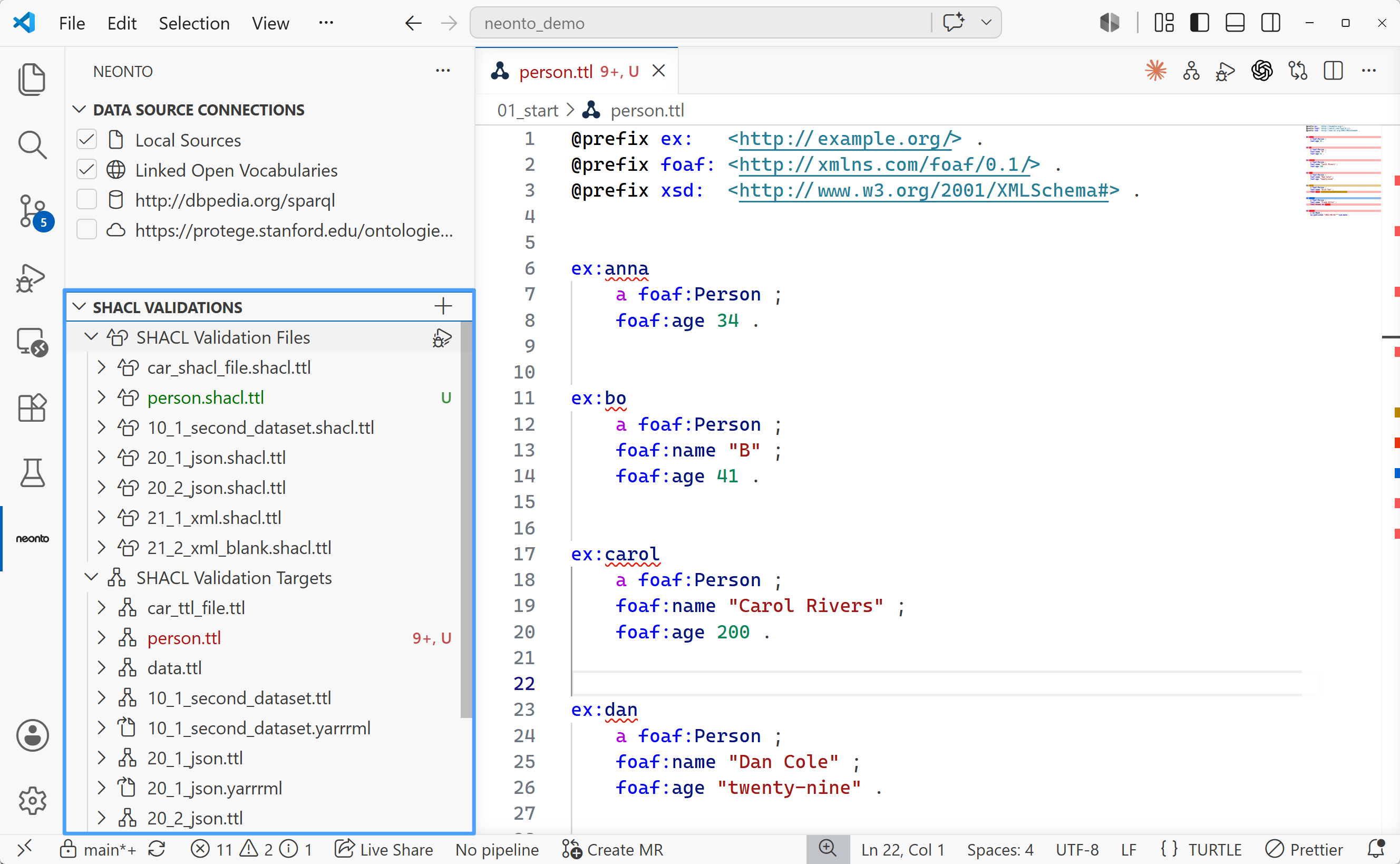
The SHACL Validations view lists the SHACL-to-RDF validation connections you've configured. From here you can add or remove connections, and run validation for one connection or all of them at once. See SHACL Validation for details.
Editor-title buttons
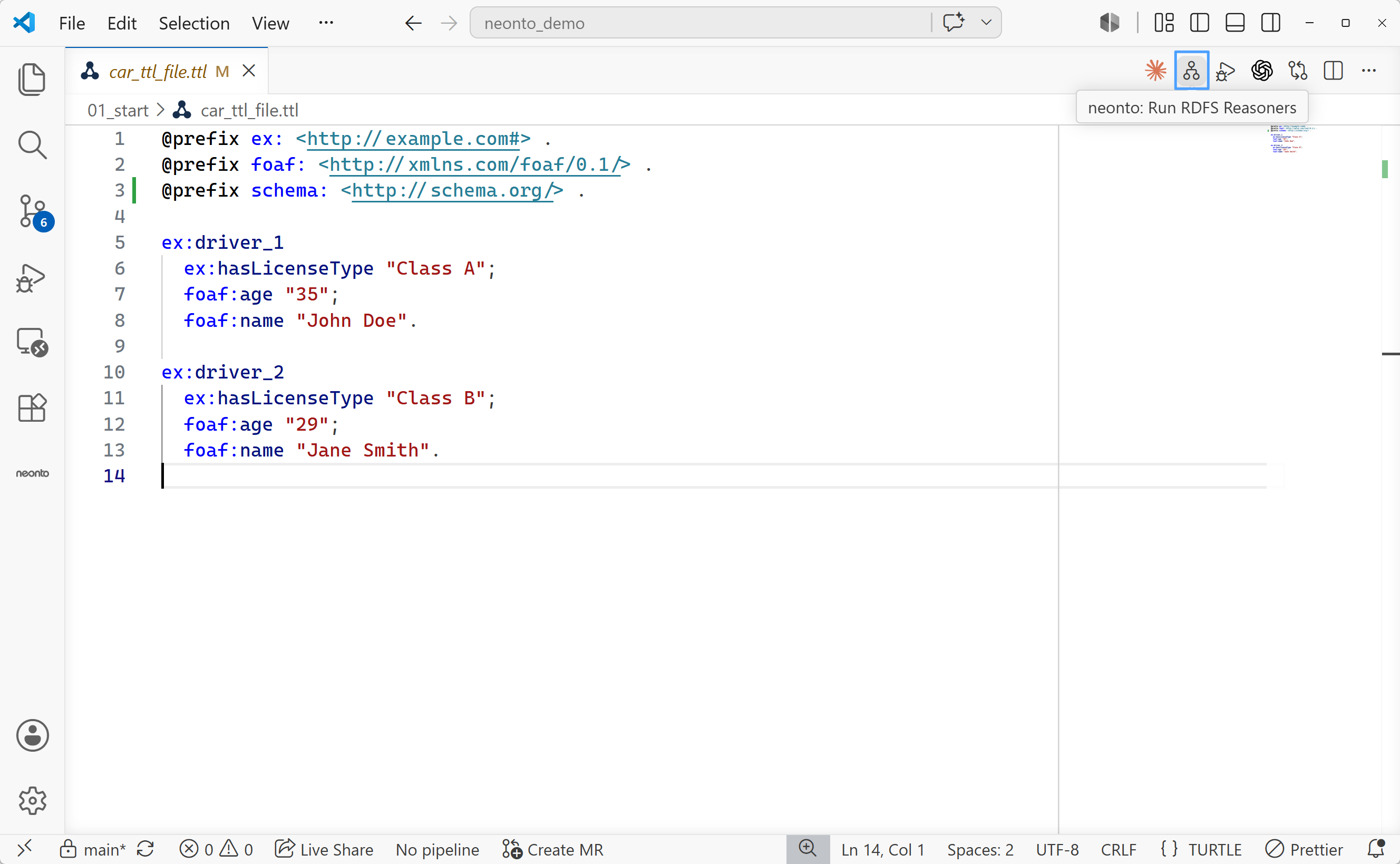
When you open a file of a supported type, neonto adds command buttons to the editor title bar (top-right of the editor tab). The buttons shown depend on the file's language:
| File type | Buttons shown |
|---|---|
Turtle / SHACL (.ttl, .shacl) | neonto: Run SHACL Validation, neonto: Run RDFS Reasoner |
SPARQL (.sparql, .rq) | neonto: Run SPARQL Query |
YARRRML (.yarrrml, .yarrrml.yml, .yarrrml.yaml) | neonto: Create RML from YARRRML, neonto: Create R2RML from YARRRML, neonto: Run a mapping file, include SHACL validation if applicable |
Hovering over any button shows its command title as a tooltip. Every button is also available from the Command Palette — but not every command gets a button: for example neonto: Run OWL Reasoner, the SHACL report/UI commands, and neonto: Create Triples from an RML file + Sources have no editor-title button.
Status bar
When the active editor is a SPARQL file (.sparql or .rq), a status bar item labeled SPARQLResult: <type> appears on the right side of the status bar. It shows the currently selected result format for query execution (for example simple, text/csv, or application/sparql-results+json). Clicking it lets you select the query return format directly, without needing to open the Command Palette. The item is hidden automatically when you switch to a non-SPARQL file.

Command Palette conventions
All neonto commands are prefixed with neonto: in the Command Palette (Ctrl+Shift+P or F1). Commands specific to a certain file type (like Turtle, SPARQL, or YARRRML) only appear when that type of file is open and active; sidebar and data-source commands are always available. This documentation refers to commands by their exact Command Palette title, e.g. neonto: Run SPARQL Query.