License & Login
Authenticate and activate your license so you can use neonto's editing, validation, reasoning, and MCP features.
Logging in
Signing in runs a short browser-based flow and then returns you to VS Code. The full sequence is shown below.
1. Start authentication
When the extension activates and you are not yet signed in, neonto shows a welcome notification in the bottom-right corner of VS Code. Click Authenticate Now.
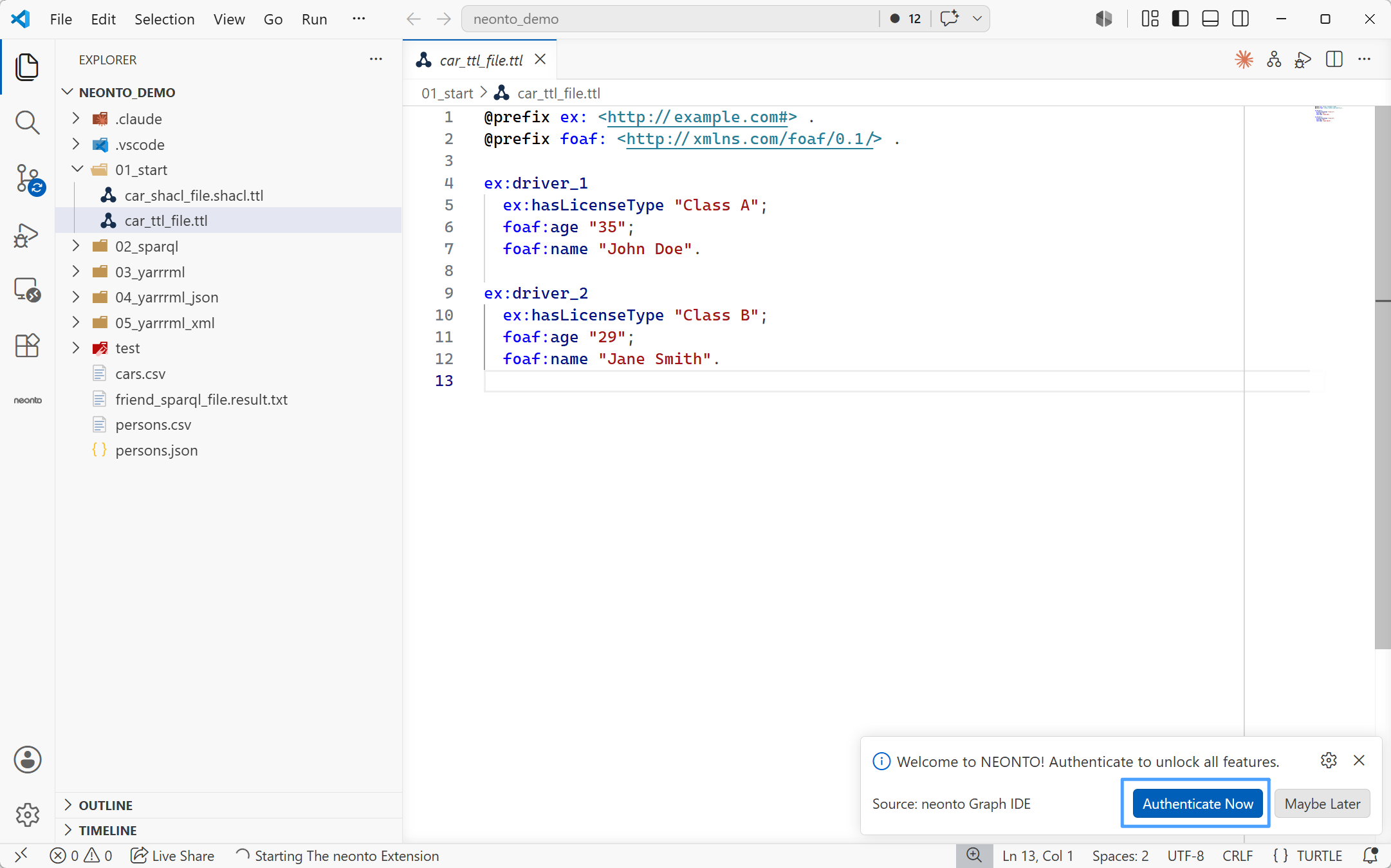
You can also start the flow at any time from the Command Palette (Ctrl+Shift+P / F1) with neonto: Login / Authenticate.
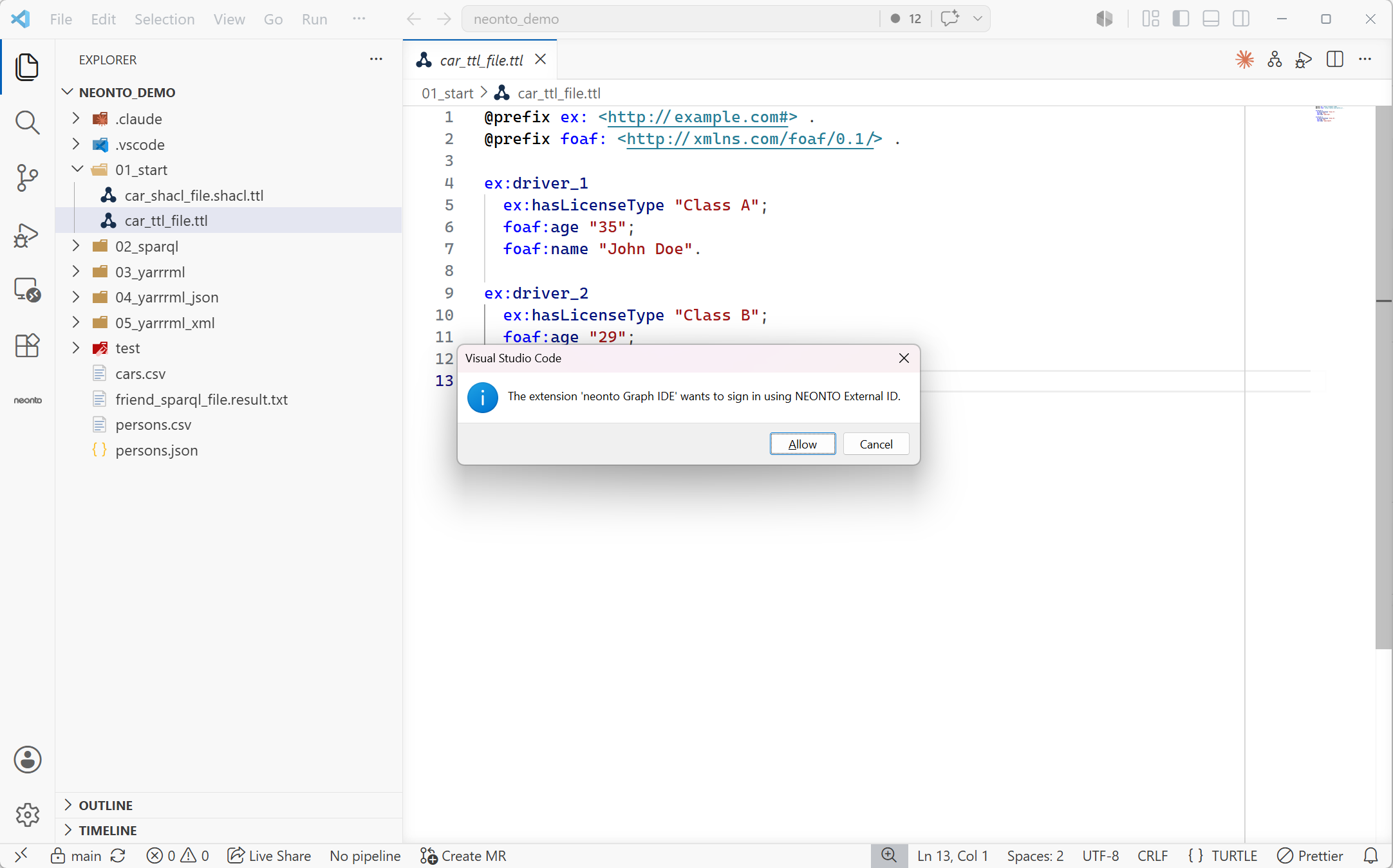
2. Allow VS Code to sign in
VS Code asks for permission to use the neonto sign-in provider. Click Allow on the dialog reading "The extension 'neonto editor' wants to sign in using NEONTO External ID."
3. Enter your email
Your browser opens the neonto Services sign-in page. Enter the email address of your neonto account and continue.
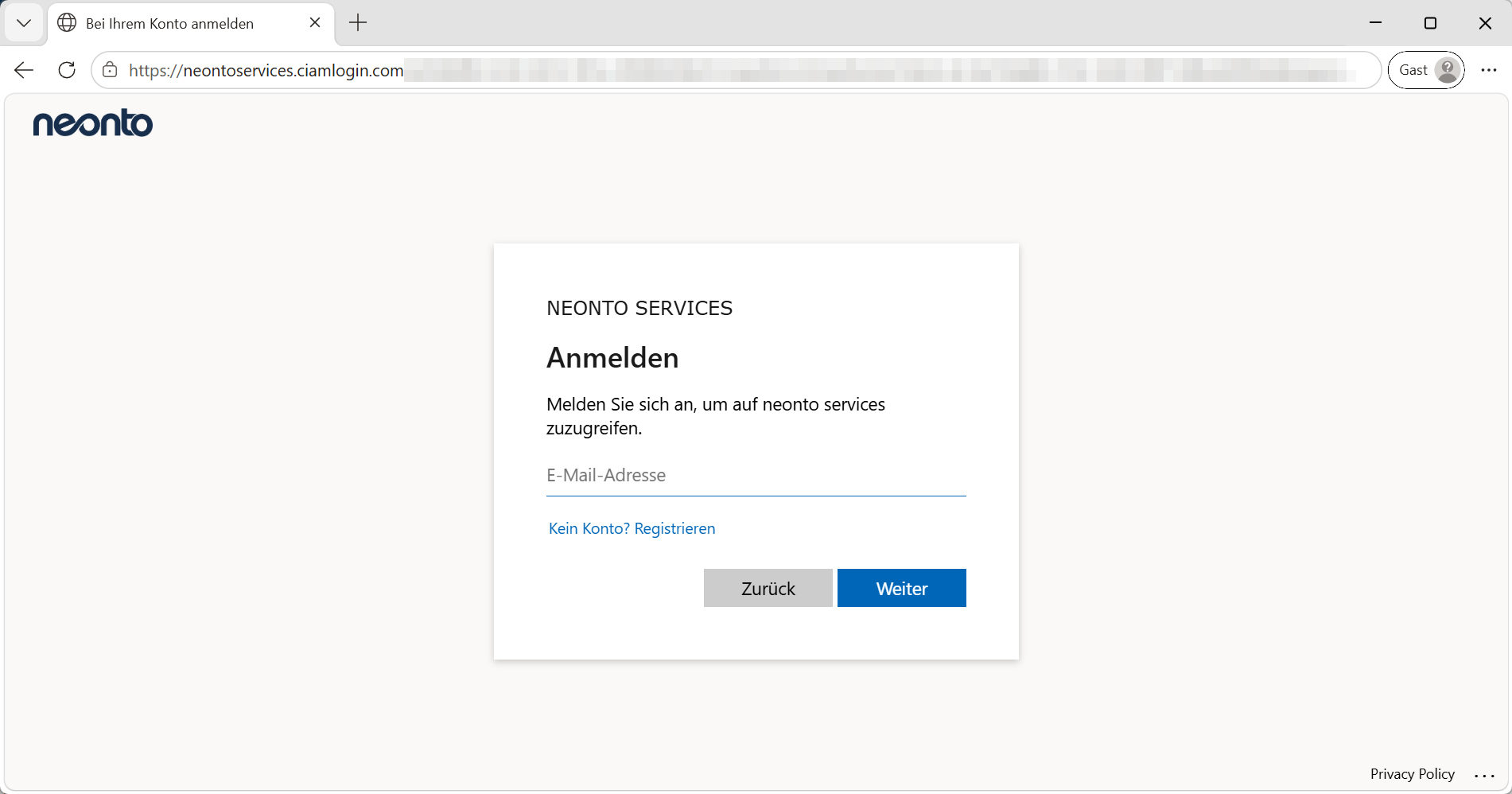
The sign-in page appears in your browser/account language. The screenshots here are in German: Anmelden = Sign in, Weiter = Continue, Kennwort = Password, Öffnen = Open.
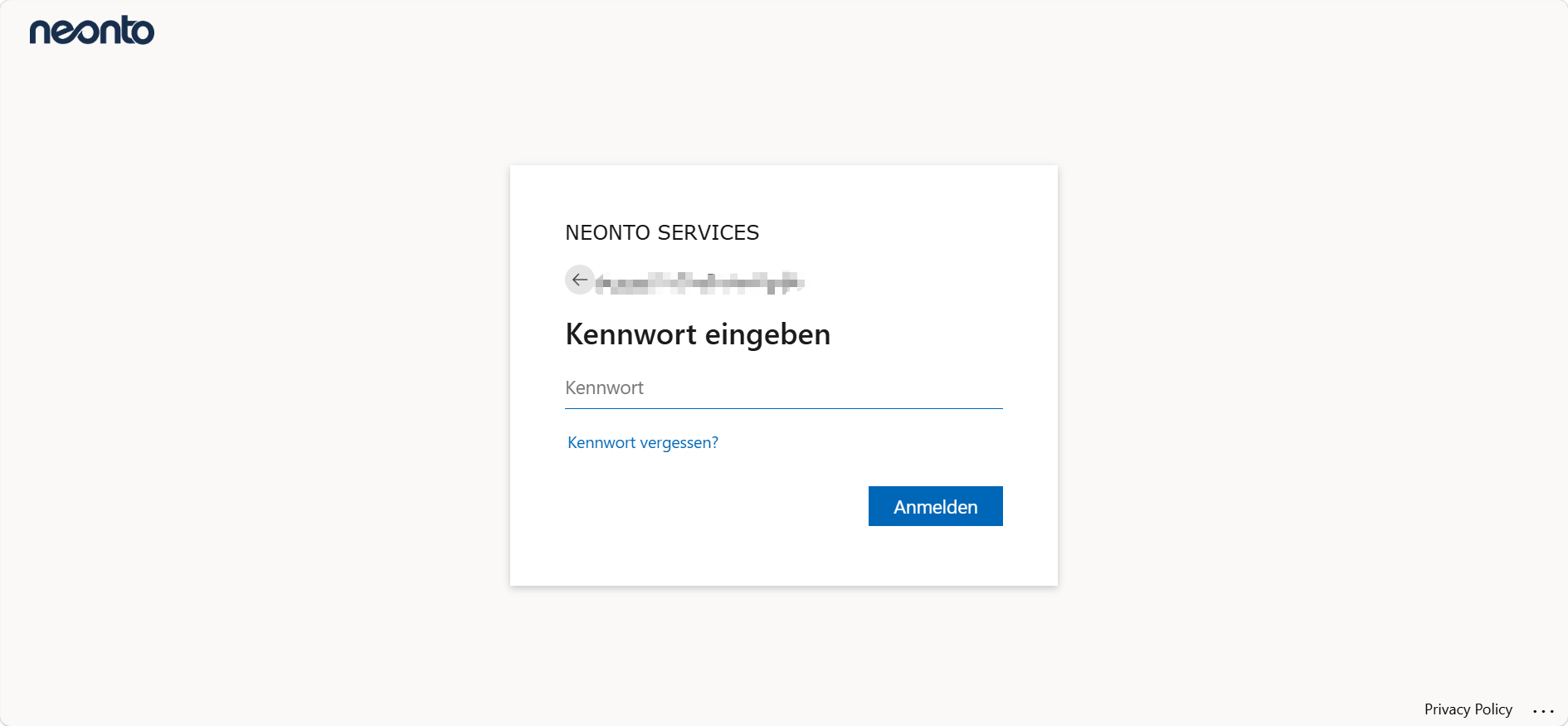
4. Enter your password
Enter your password and sign in.
5. Return to VS Code
After a successful sign-in, your browser asks to reopen Visual Studio Code. If you want to skip this confirmation on future logins, tick the "always allow…" option. Then click Open.
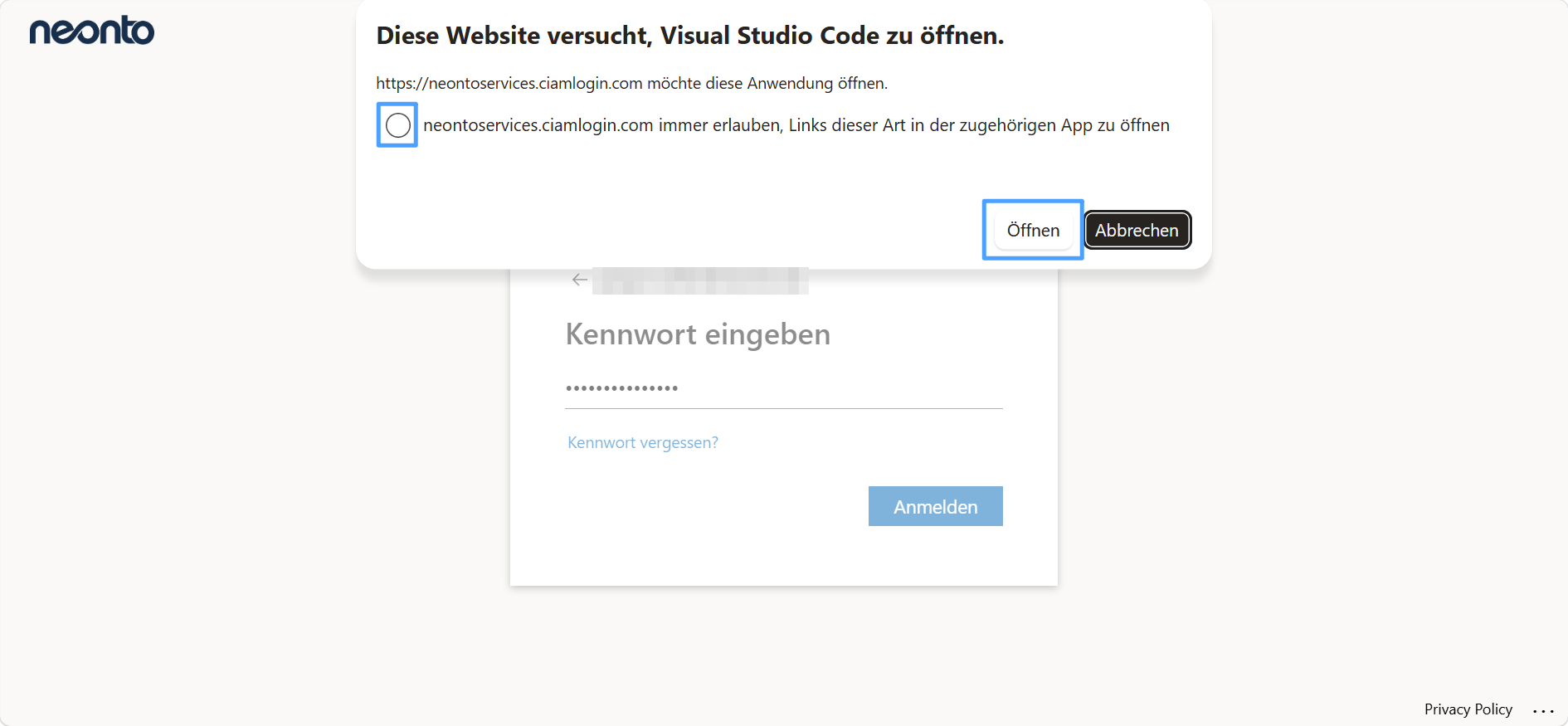
Back in VS Code, a confirmation message appears and all neonto features unlock.
Authentication commands
All authentication actions are also available from the Command Palette (Ctrl+Shift+P / F1) — type neonto: to filter:
neonto: Login / Authenticate— start the sign-in flow above.neonto: Activate License— activate a license key (see below).neonto: Logout— sign out.
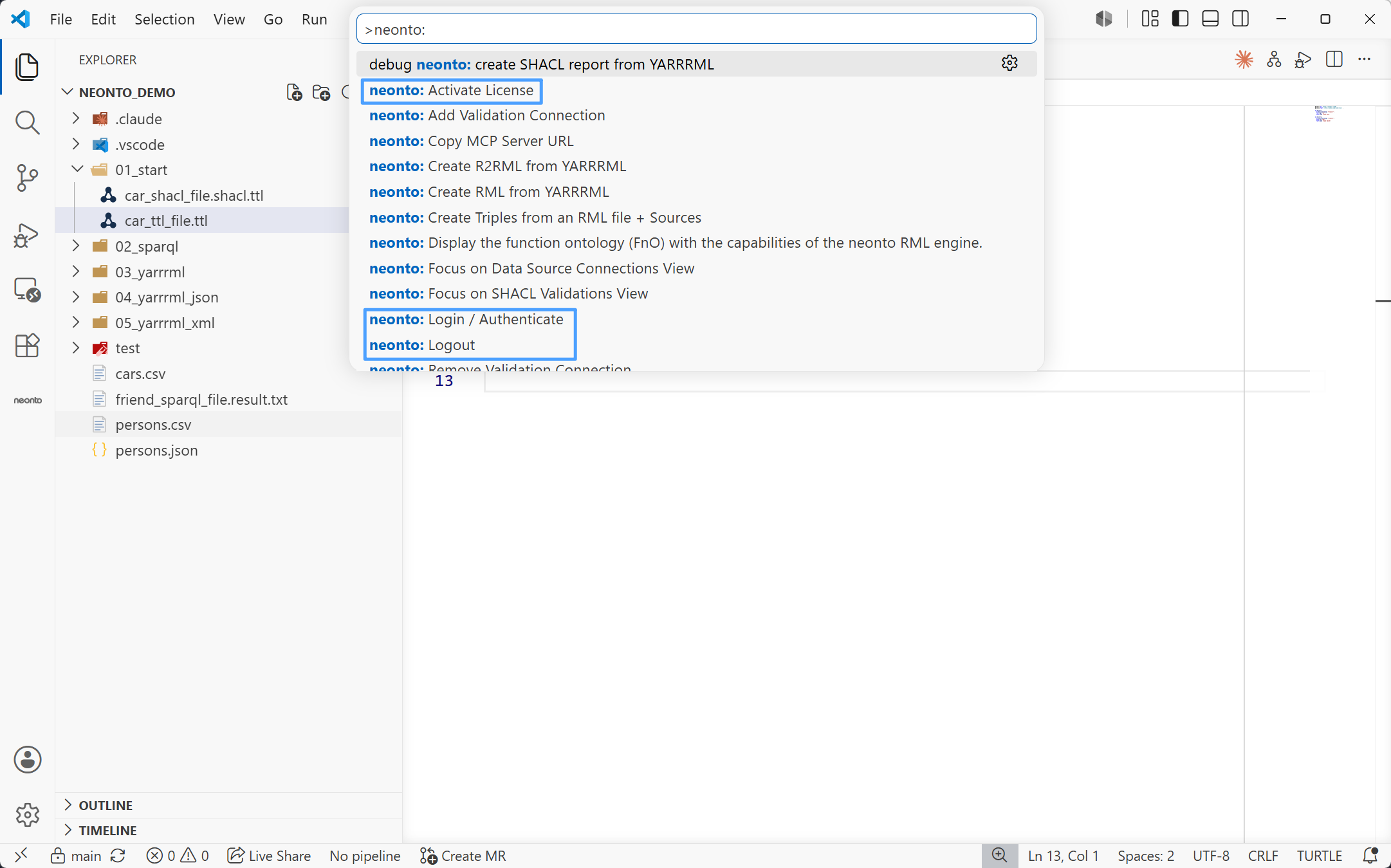
Activating a license
If you have a license key, activate it with:
- Command Palette →
neonto: Activate License
Follow the prompt to enter your license key. Once activated, the license is validated against your account and unlocks the full feature set.
Logging out
Command Palette → neonto: Logout
Where to get a license
neonto is licensed commercially. To request trial access or purchase a license, contact support@neonto.de.