Quickstart
Follow this ten-minute walkthrough to author a Turtle file, validate it with SHACL, connect a data source, and query it with SPARQL — the core neonto loop.
Before you start, make sure you've installed the extension and are logged in with an active license.
1. Author a Turtle file
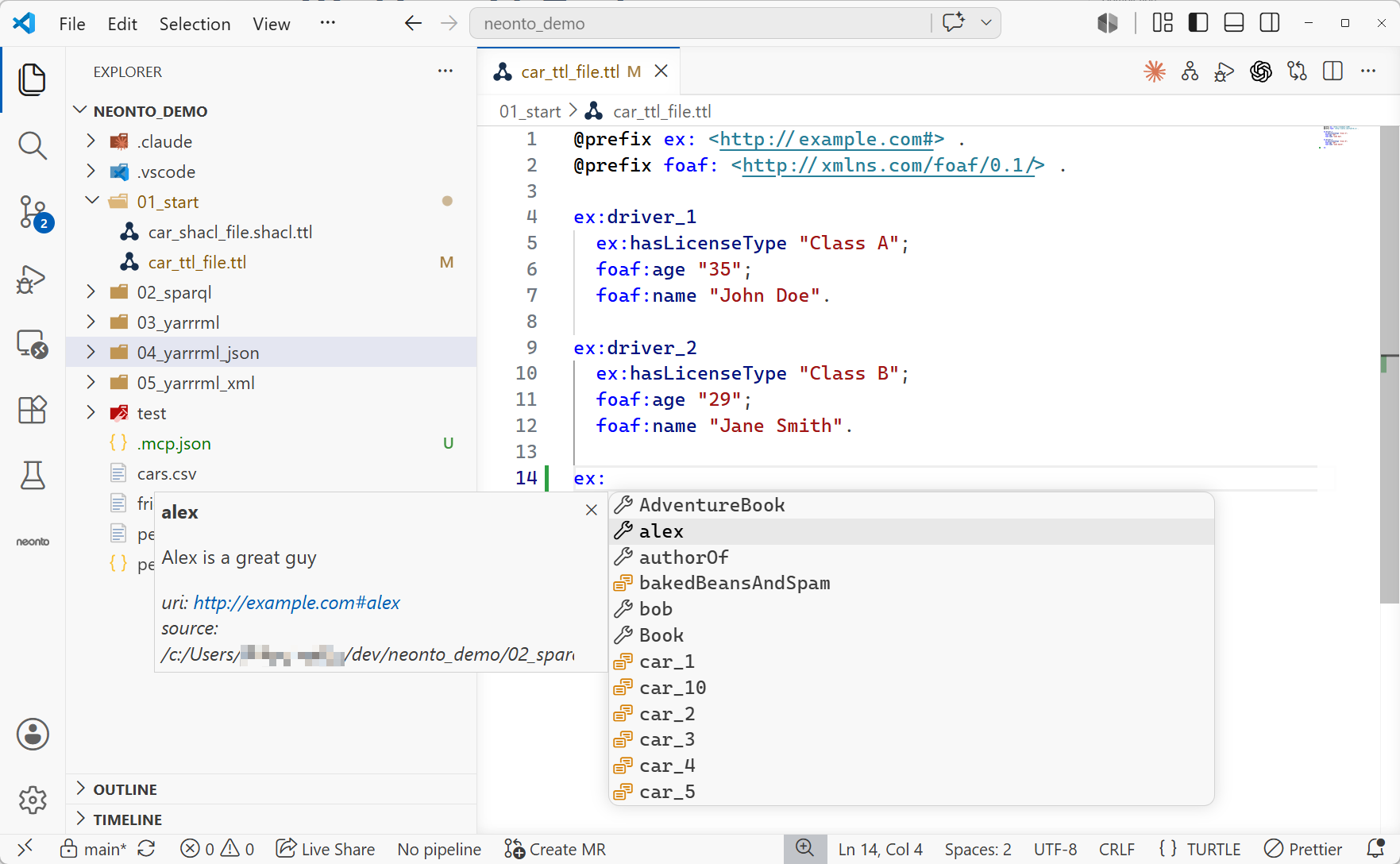
Figure 1. Turtle Completion
- Create a new file named
example.ttl. - Start typing a triple, for example
ex:, and pressCtrl+Spaceto trigger autocompletion for classes and prefixes. - Hover over a term (e.g.
rdf:typeor a class from a linked vocabulary) to see its documentation. - Check the Problems panel (
Ctrl+Shift+M) for any diagnostics, and hover over the squiggles to see details.
Diagnostics for syntax issues and undefined prefixes appear automatically as you type.
For the full authoring reference, see Working with Turtle.
2. Validate with SHACL
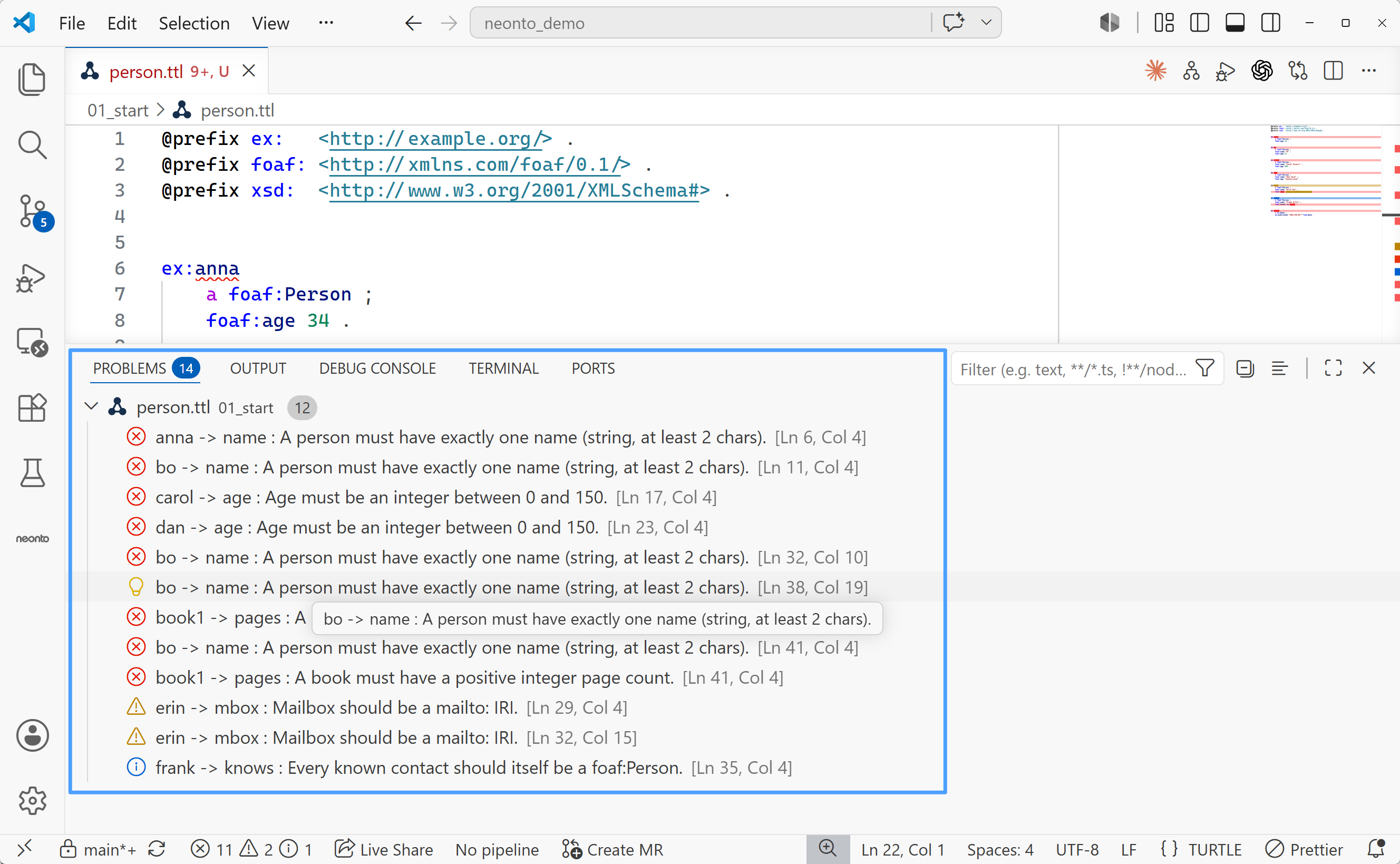
Figure 2. SHACL Validation Results
- Open the SHACL Validations view in the sidebar.
- Click the + button to add a validation connection, linking a SHACL shapes file to your RDF data file.
- Run the validation via the Command Palette (
Ctrl+Shift+P/F1) →neonto: Run SHACL Validation, or right-click the connection in the sidebar. - Review results in the Problems panel and as inline diagnostics in the editor.
See SHACL Validation for reports and constraint visualization.
3. Map data with YARRRML
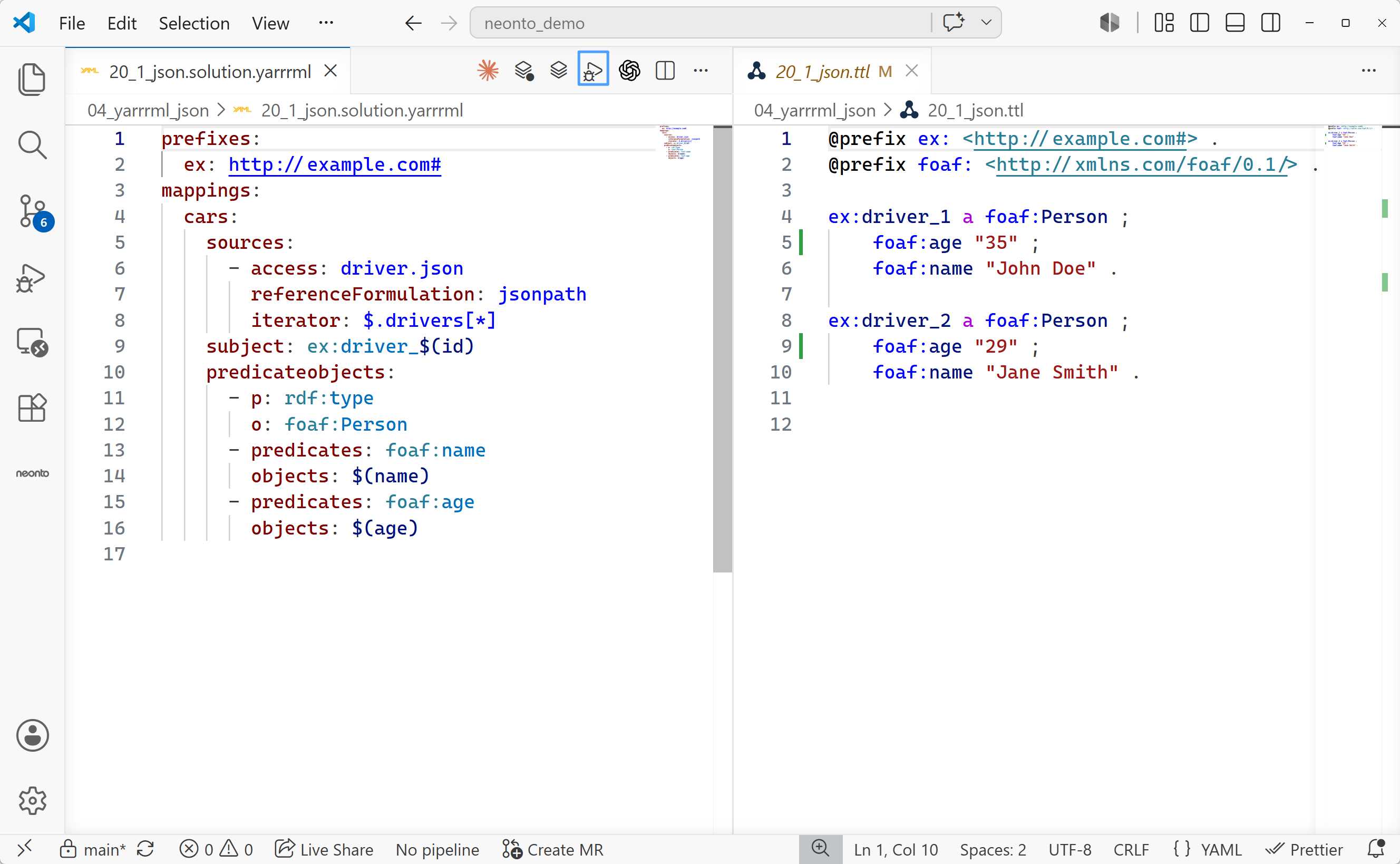
Figure 3. YARRRML Mapping
- Create a new file named
mapping.yarrrml. - Write your mapping rules to convert tabular or JSON data into RDF, utilizing autocompletion (
Ctrl+Space) for prefixes and functions. - Click the Create RML from YARRRML button in the editor title bar to compile your rules into RML.
- Execute the mapping via the Command Palette to materialize your data into triples.
See Working with YARRRML for the full mapping reference.
4. Add a data source
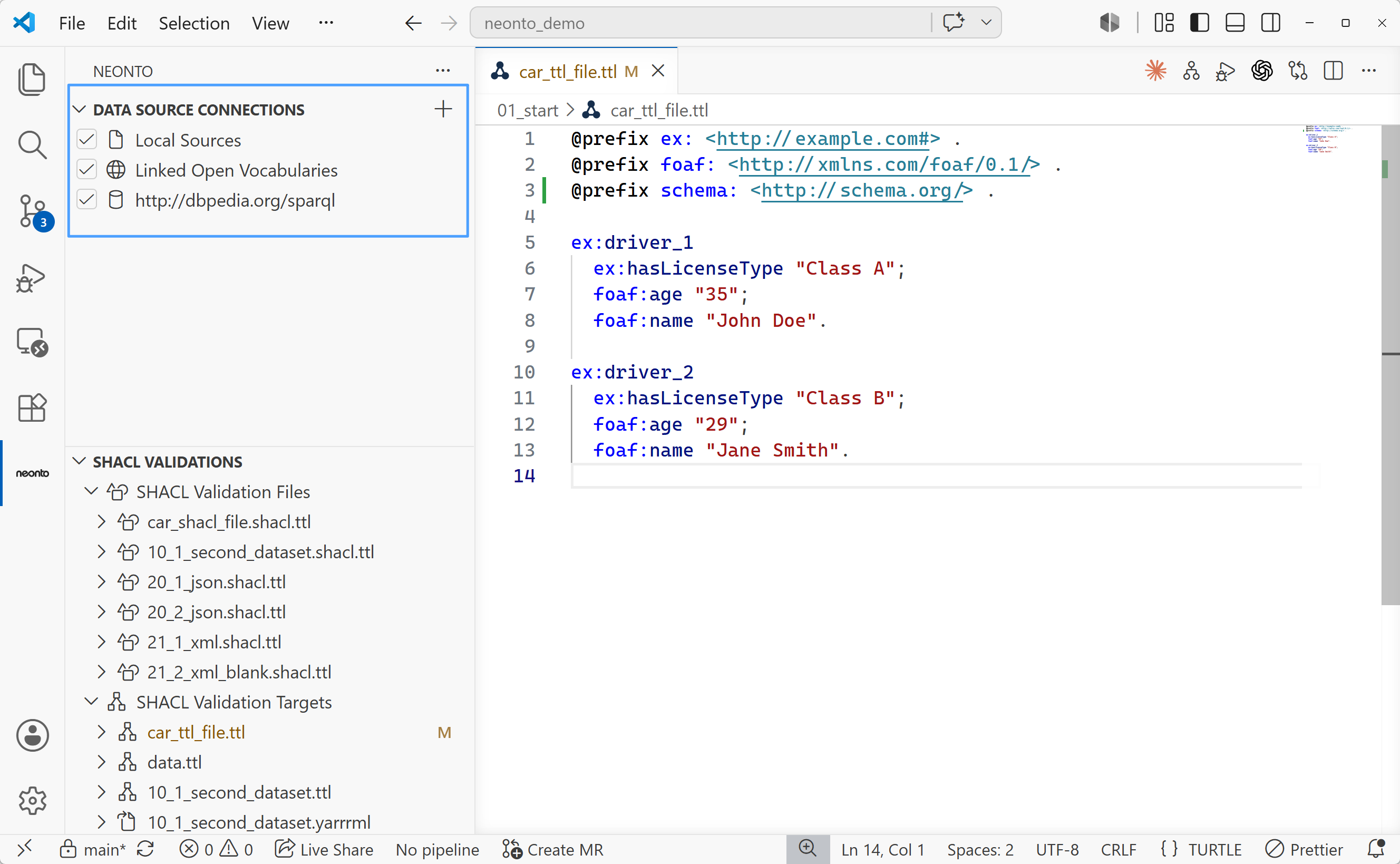
Figure 4. Data Source Connections
- Open the neonto icon in the left sidebar to reveal the Data Source Connections view.
- Click the + (Add Data Source) button next to the Data Source Connections title.
- Choose SPARQL endpoint as the source type and enter the DBpedia endpoint URL (
https://dbpedia.org/sparql).
See Data Sources for details on source types and management.
5. Run a SPARQL query
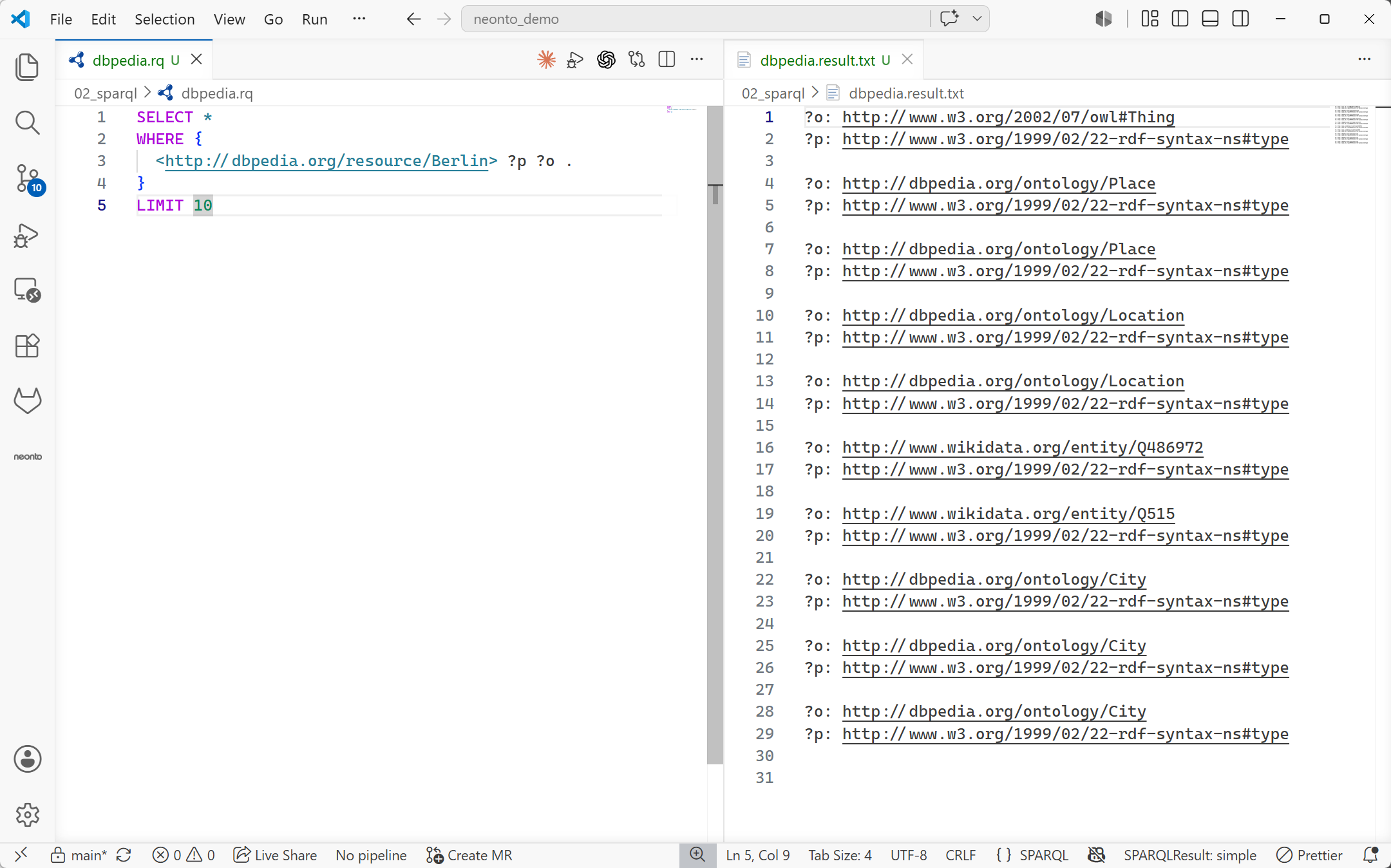
Figure 5. SPARQL Query Results
- Create a new file named
query.sparql. - Write a simple query against DBpedia, e.g.
PREFIX dbr: <http://dbpedia.org/resource/>

SELECT * WHERE {
  dbr:Berlin ?p ?o .
}
LIMIT 10
- Run it via the Command Palette →
neonto: Run SPARQL Query, or the button in the editor title bar. - Review the results — with the default
simpleformat they open as a.result.txtdocument next to your query.
See Working with SPARQL for query execution and result formats.
Where to go next
- Part 3: Authoring — deep dive into Turtle, SPARQL, TriG/N-Triples, and YARRRML.
- Part 4: RDF Ecosystem — SHACL validation, reports, reasoning, and ETL/ingestion.
- Agentic AI Overview — connect AI coding agents to the same tooling.