Managing Data Sources
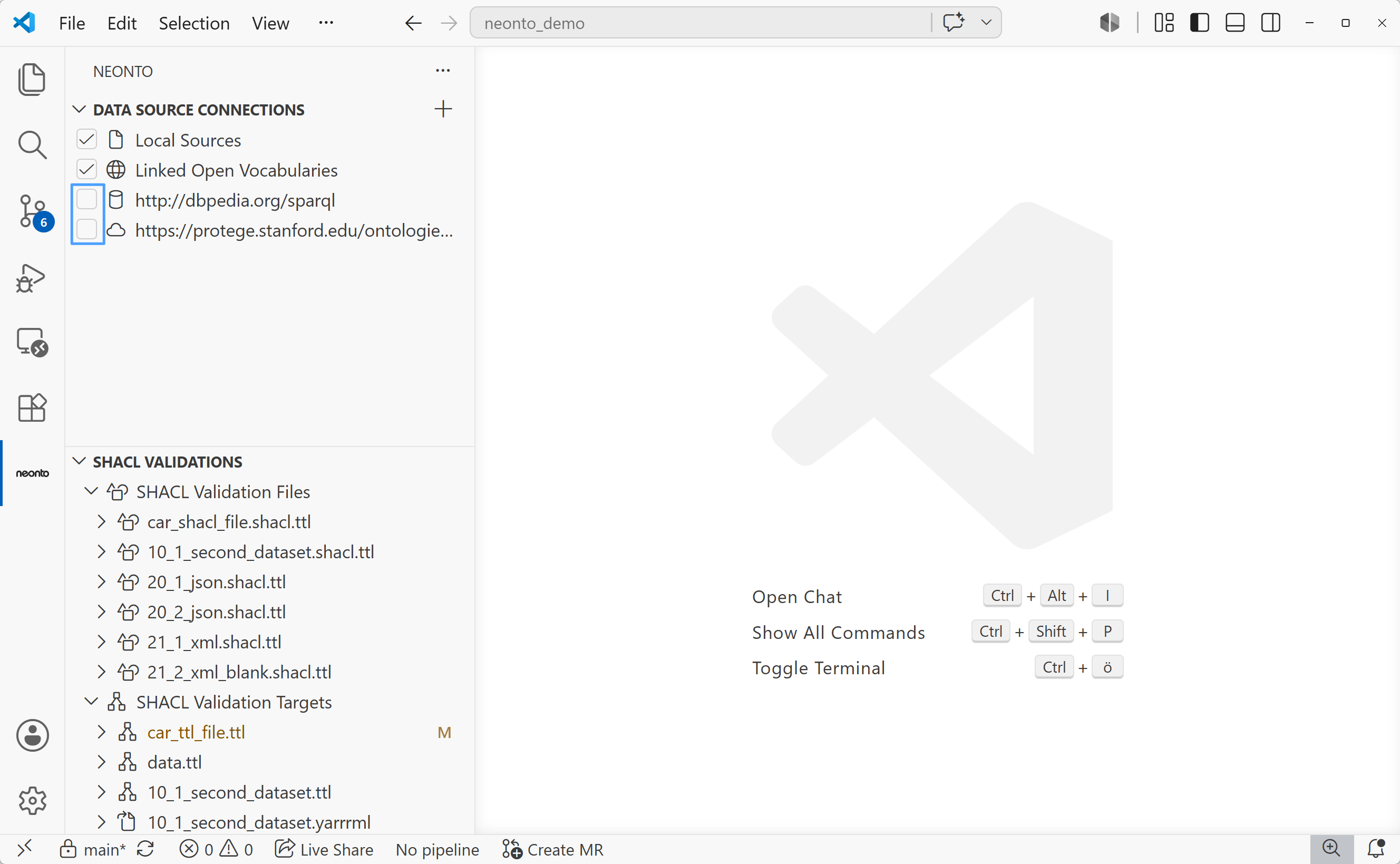
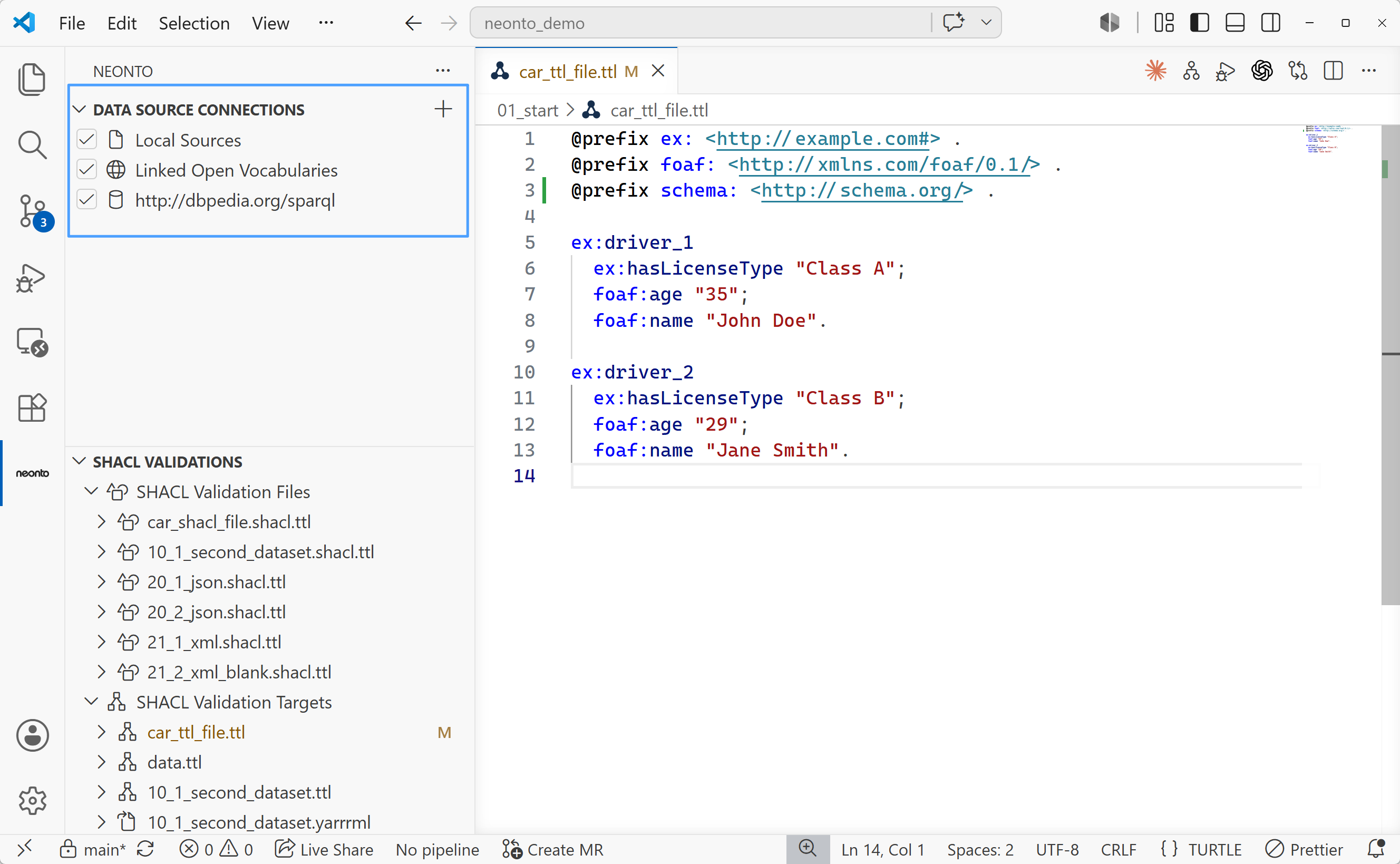
Data sources are the RDF and SPARQL endpoints neonto reads to power the autocompletion, hover documentation, and SPARQL query execution. This page covers all five source types and how to manage them from the Data Source Connections view, see Figure 1.
Source types
| Type | Added via | Used for |
|---|---|---|
| Local workspace RDF files | Automatic — no action needed | Autocompletion, hover, workspace-wide term resolution, error detection (diagnostics), SPARQL query target ("Internal / External Files" or individual workspace file) |
| SPARQL endpoint | Add SPARQL Endpoint | Autocompletion, hover, error detection (diagnostics), SPARQL query target (direct endpoint query) |
| Remote RDF file over HTTP(S) | Add Remote RDF File | Autocompletion, hover, error detection (diagnostics), SPARQL query target ("Internal / External Files" or individual external source) |
| Filesystem RDF file outside the workspace | Add RDF File from your Filesystem | Autocompletion, hover, error detection (diagnostics), SPARQL query target ("Internal / External Files" or individual external source) |
| Linked Open Vocabularies (LOV) | Built in — always listed in the view | On-demand vocabulary lookups for autocompletion and hover |
Local workspace RDF files
Recognized RDF files in your workspace are indexed automatically — you don't add them manually. See File Formats for supported extensions. Files above the indexing limit are skipped; see Size limits. Indexed local files are represented collectively as the Local Sources entry in the Data Source Connections view; toggling its checkbox enables or disables using local files as a query/completion source.
SPARQL endpoint
- Open the Data Source Connections view and select
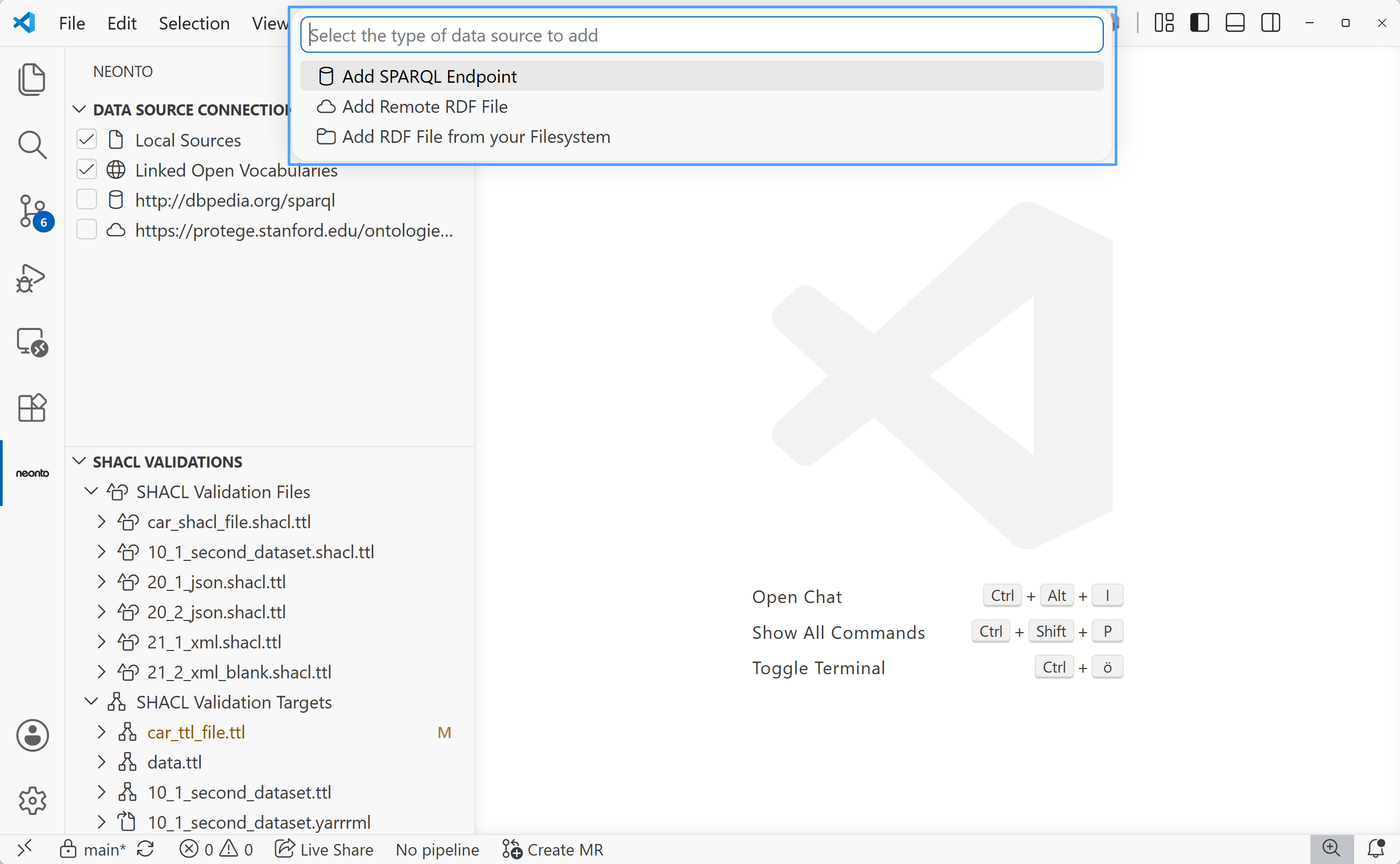
Add Data Source(the+icon in the view title), or runneonto: Add SPARQL Endpointfrom the Command Palette.
- If you used
Add Data Source, pick Add SPARQL Endpoint from the quick pick. - Enter the endpoint URI (e.g.
https://example.org/sparql). - Optionally enter a username for Basic authentication. If you provide one, you're also prompted for a password.
- neonto checks that the endpoint is reachable with the given credentials before adding it. If the check fails, the endpoint is not added.
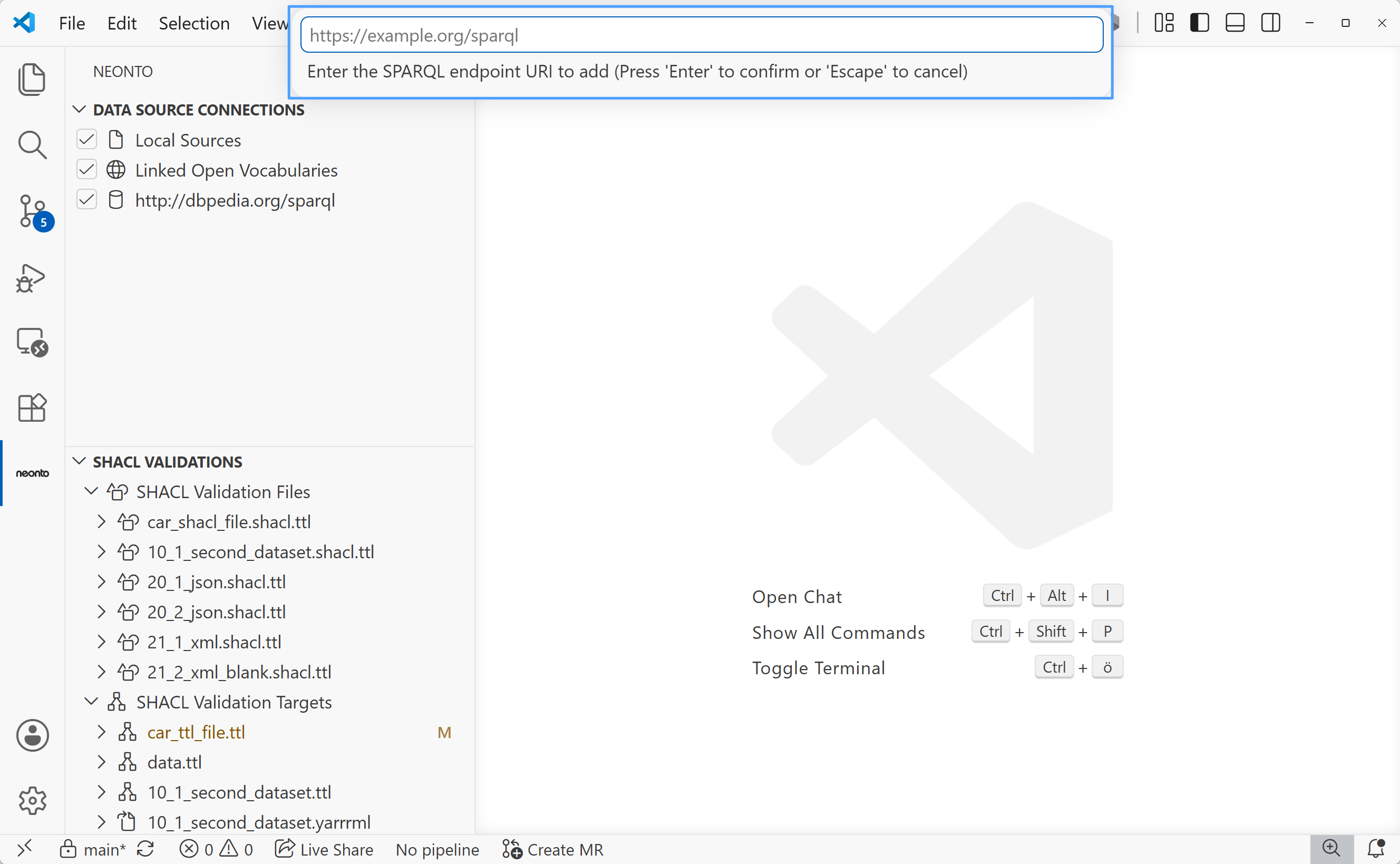
The endpoint then appears in the view, labeled with its URI (and @username if authenticated). See Endpoint Credentials for a detailed guide on how to add an endpoint, and SPARQL for running queries against it.
Remote RDF file over HTTP(S)
- From the Data Source Connections view, select
Add Data Source→ Add Remote RDF File, or runneonto: Add Remote RDF Filedirectly. - Enter the file's URL (e.g.
https://example.com/ontology.ttl).
Filesystem RDF file outside the workspace
- From the Data Source Connections view, select
Add Data Source→ Add RDF File from your Filesystem, or runneonto: Add RDF File from your Filesystemdirectly. - Pick a file in the file picker. See File Formats for supported extensions. The picker also offers an All Files option.
Linked Open Vocabularies (LOV)
Linked Open Vocabularies (LOV) resolves prefixes on demand. When a built-in vocabulary or active source does not resolve a prefix, neonto queries LOV. The Data Source Connections view shows LOV as its own entry. Clear its checkbox to disable on-demand LOV lookups.
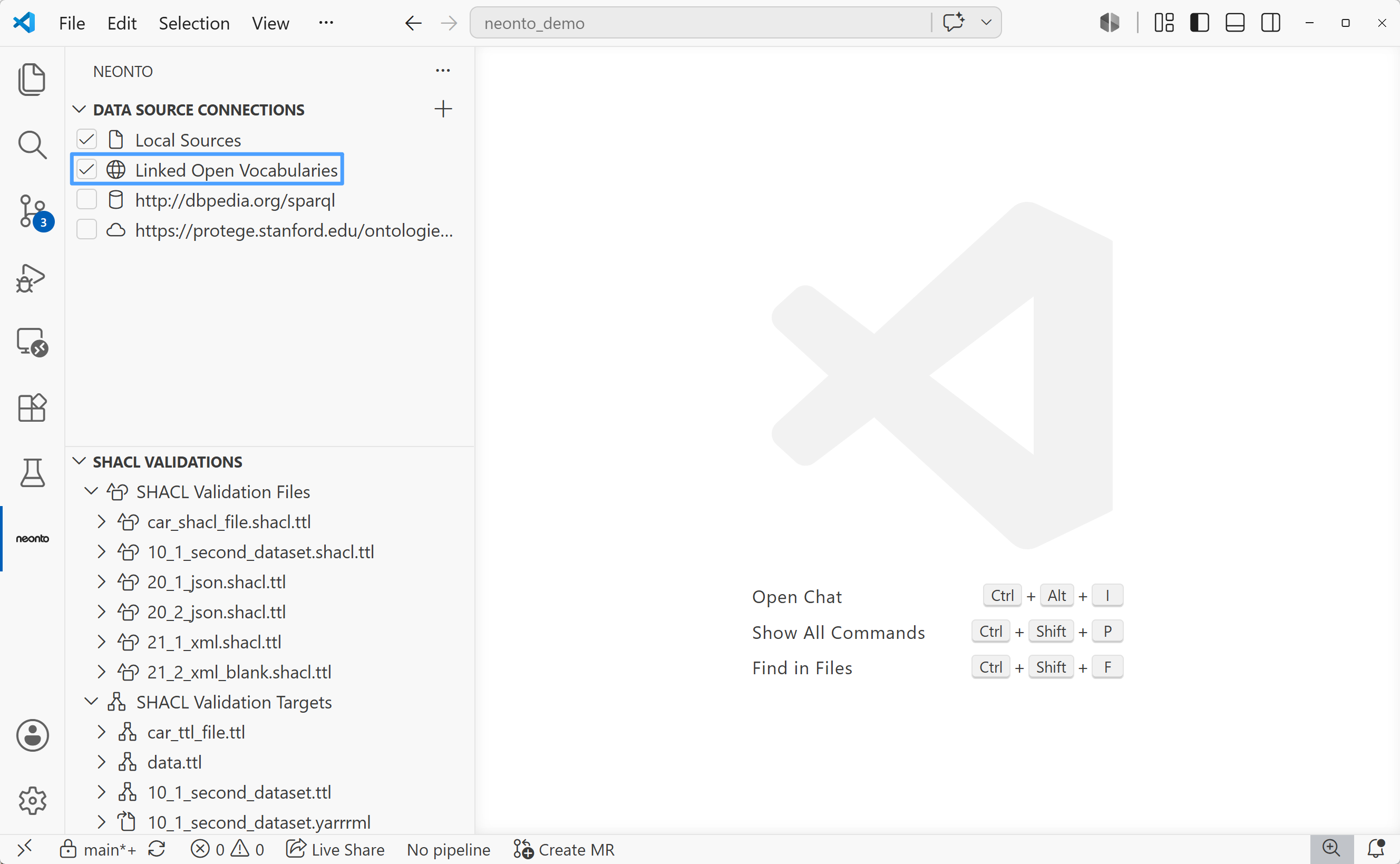
neonto ships several built-in vocabularies so common terms resolve immediately, with no network lookup: SHACL, FOAF, schema.org, XSD, RDFa, prefix.cc prefix mappings, SPARQL, and YARRRML. These are always available for completion and hover, even offline.
Managing sources
Preview, refresh, remove
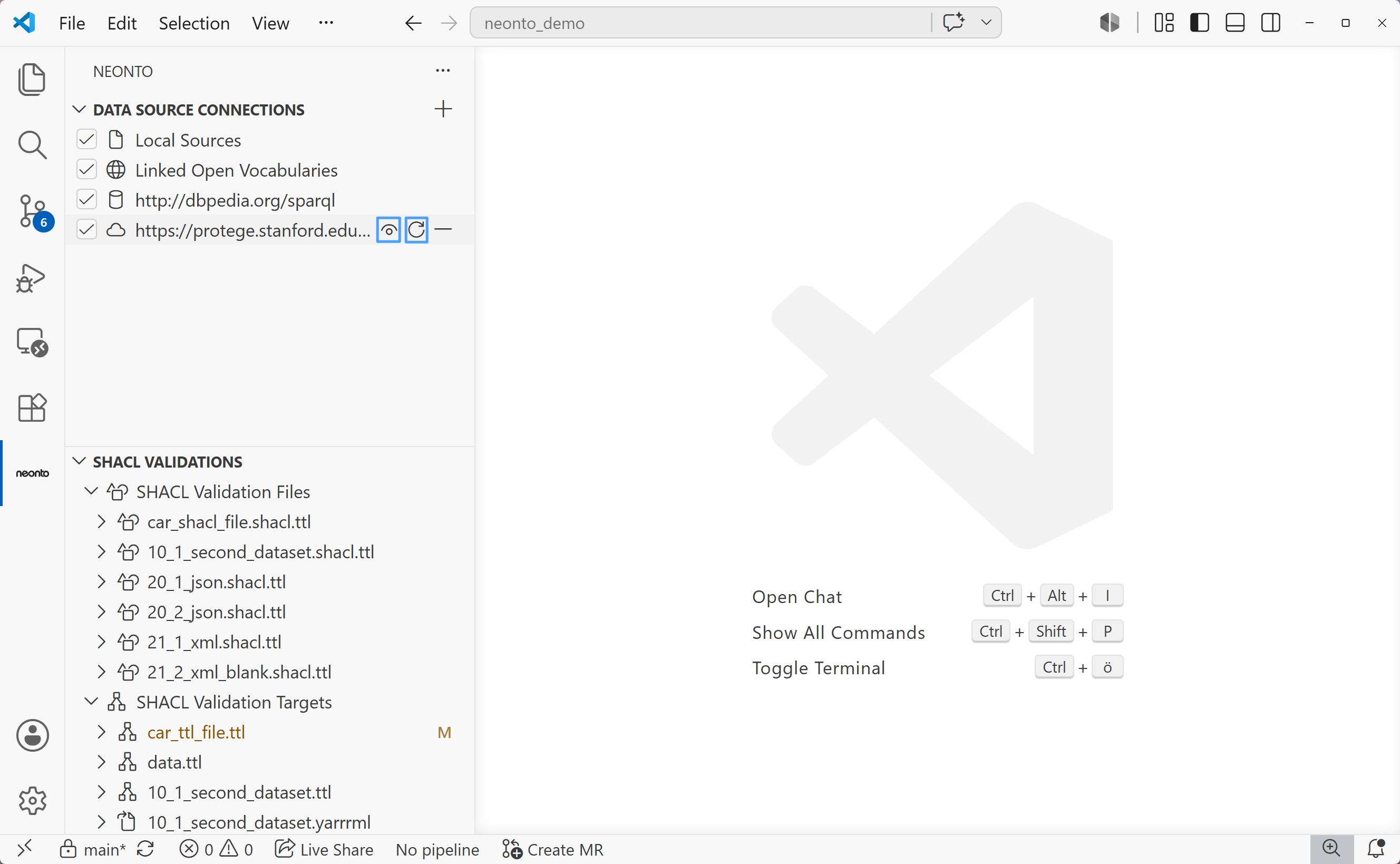
Remote and filesystem RDF sources have inline context icons in the Data Source Connections view:
- Preview (eye icon) — opens the source's content in a read-only preview editor tab, without leaving the sidebar.
- Refresh (refresh icon) — re-fetches or re-reads the source and re-indexes it.
- Remove (remove icon) — removes the source from the list and stops using it for completion/hover.
SPARQL endpoints have their own removal action, Remove SPARQL Endpoint, which also deletes any persisted credentials for that endpoint. See Endpoint Credentials.
Active / passive toggling
Every source has a checkbox. This includes Local Sources, Linked Open Vocabularies (LOV), SPARQL endpoints, and external RDF sources. Select the checkbox to make a source active. Active sources contribute to completion and hover tooltips. neonto can also query them as SPARQL data sources. Clear the checkbox to make a source passive. Passive sources stay in the list but neonto does not query them. neonto saves this state for each workspace and restores it when VS Code starts.