Working with Turtle
Turtle (.ttl) is the primary format for authoring RDF in neonto Graph IDE, with full language support for completion, diagnostics, hover, and formatting.
Syntax highlighting
Any .ttl or .shacl file gets syntax highlighting for prefixes, IRIs, literals, and the a shorthand for rdf:type.
Completion
Press Ctrl+Space inside a .ttl file to trigger autocompletion for:
- Common and workspace-declared prefixes.
- Classes and properties from linked vocabularies.
- Subjects, predicates, and objects already used elsewhere in your RDF data.
neonto gets suggestions from vocabularies available to your workspace. These include local RDF files, built-in vocabularies, Linked Open Vocabularies, and active SPARQL endpoints. Built-in vocabularies include SHACL, RDFS/OWL, SKOS, Schema.org, and FOAF. See Managing Data Sources to make more vocabularies available.
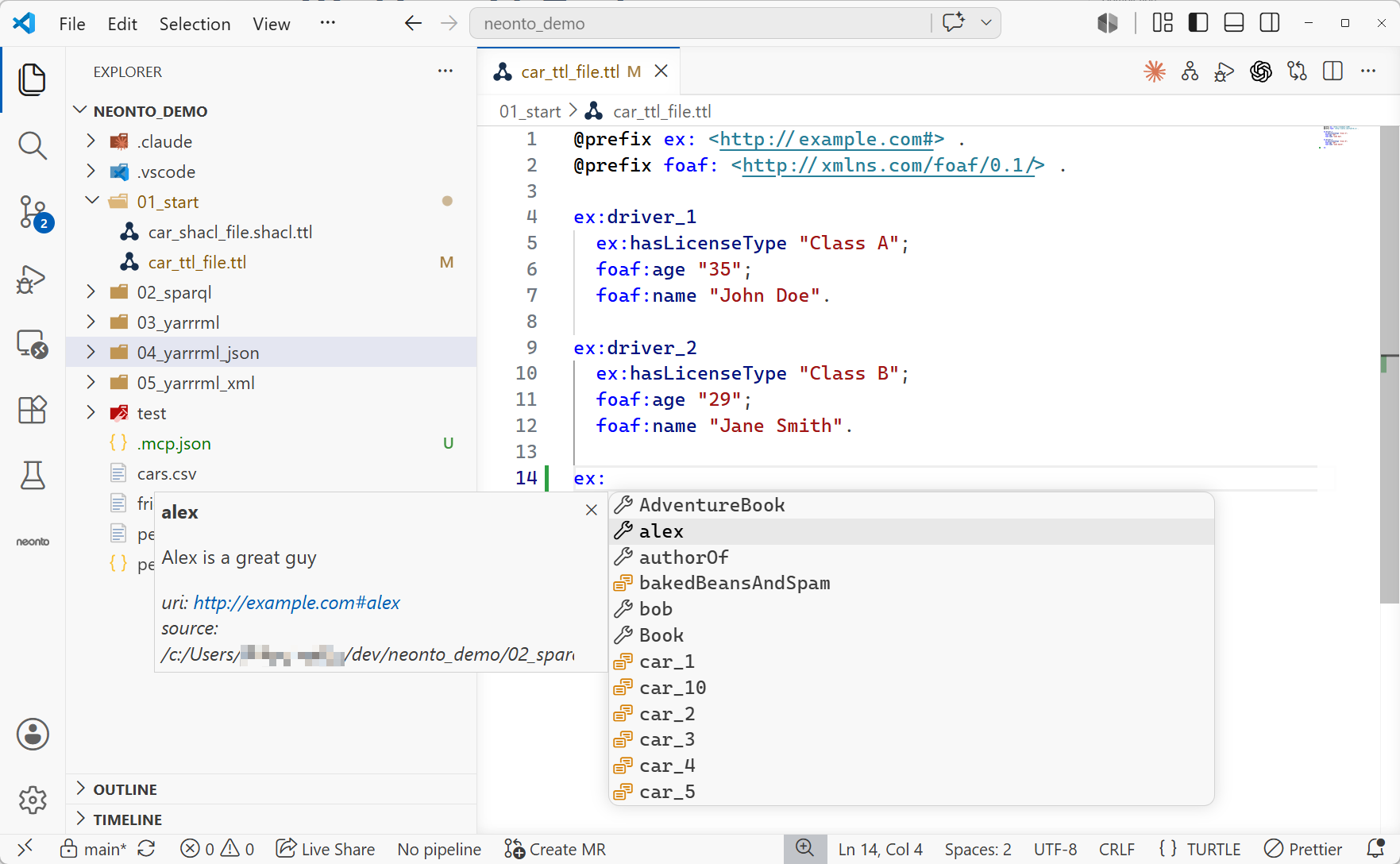
Automatic prefix management
neonto suggests and completes common prefixes automatically as you write Turtle, TriG, or SPARQL, based on prefix.cc and the vocabularies currently in scope. This reduces the need to write by hand @prefix / PREFIX declarations for well-known namespaces.
Live diagnostics
As you type and on file open/save, neonto reports:
- Syntax errors in the Turtle grammar.
- Undefined or unknown prefixes.
- Invalid or malformed IRIs.
- Terms that do not match anything in your active vocabulary or data sources.
Diagnostics appear as squiggles in the editor and in the Problems panel. Very large files do not get live diagnostics. See Size limits.
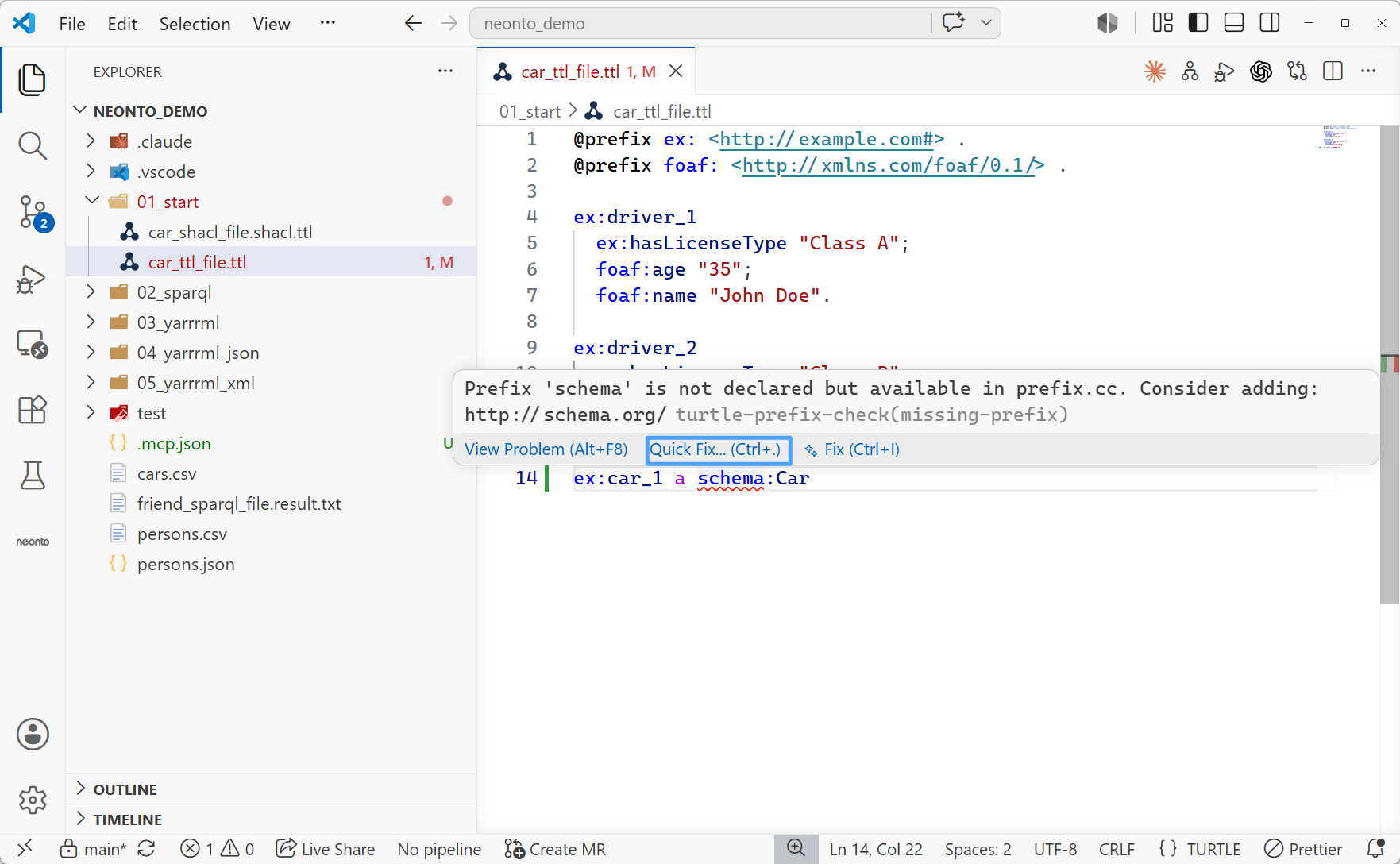
Quick fixes
Some diagnostics have a quick fix. Click the light bulb or press Ctrl+. with the cursor on the underlined term. For an undeclared prefix known to prefix.cc, select Add missing prefix declaration. To resolve every missing prefix in the file, select Add all missing prefix declarations.
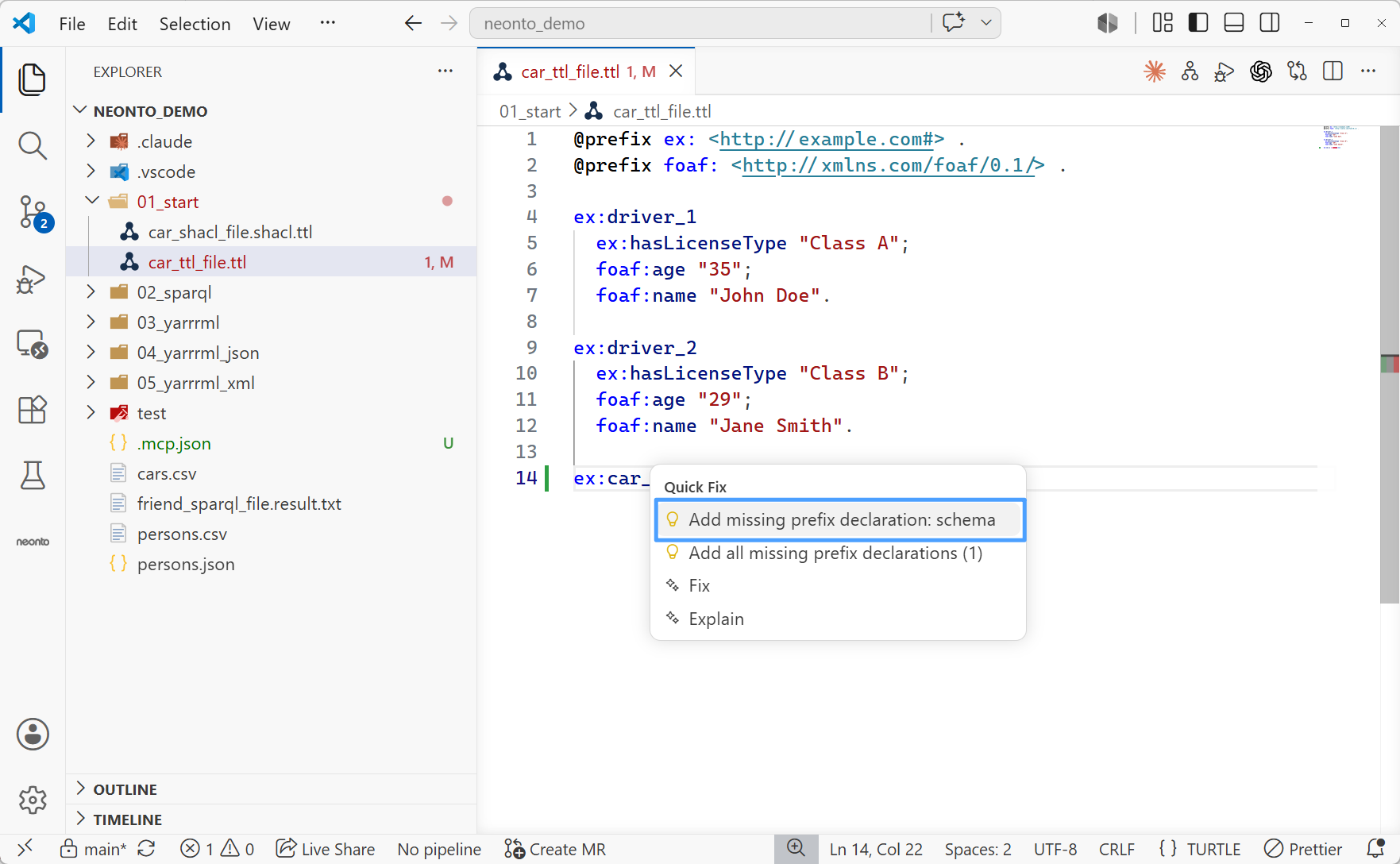
The fix inserts the declaration at the top of the file. For example, it inserts @prefix schema: <http://schema.org/> .. The diagnostic then disappears:
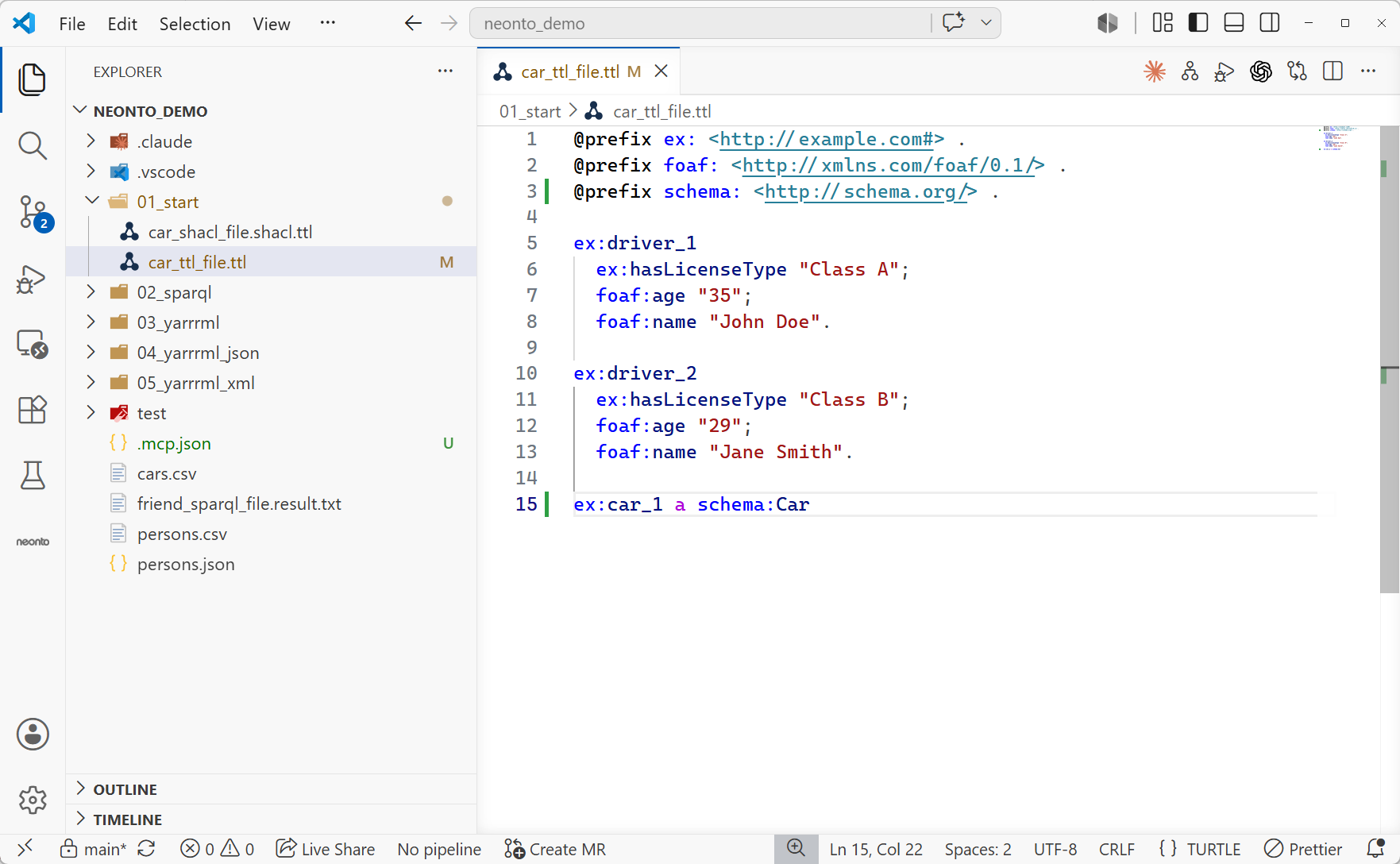
Hover documentation
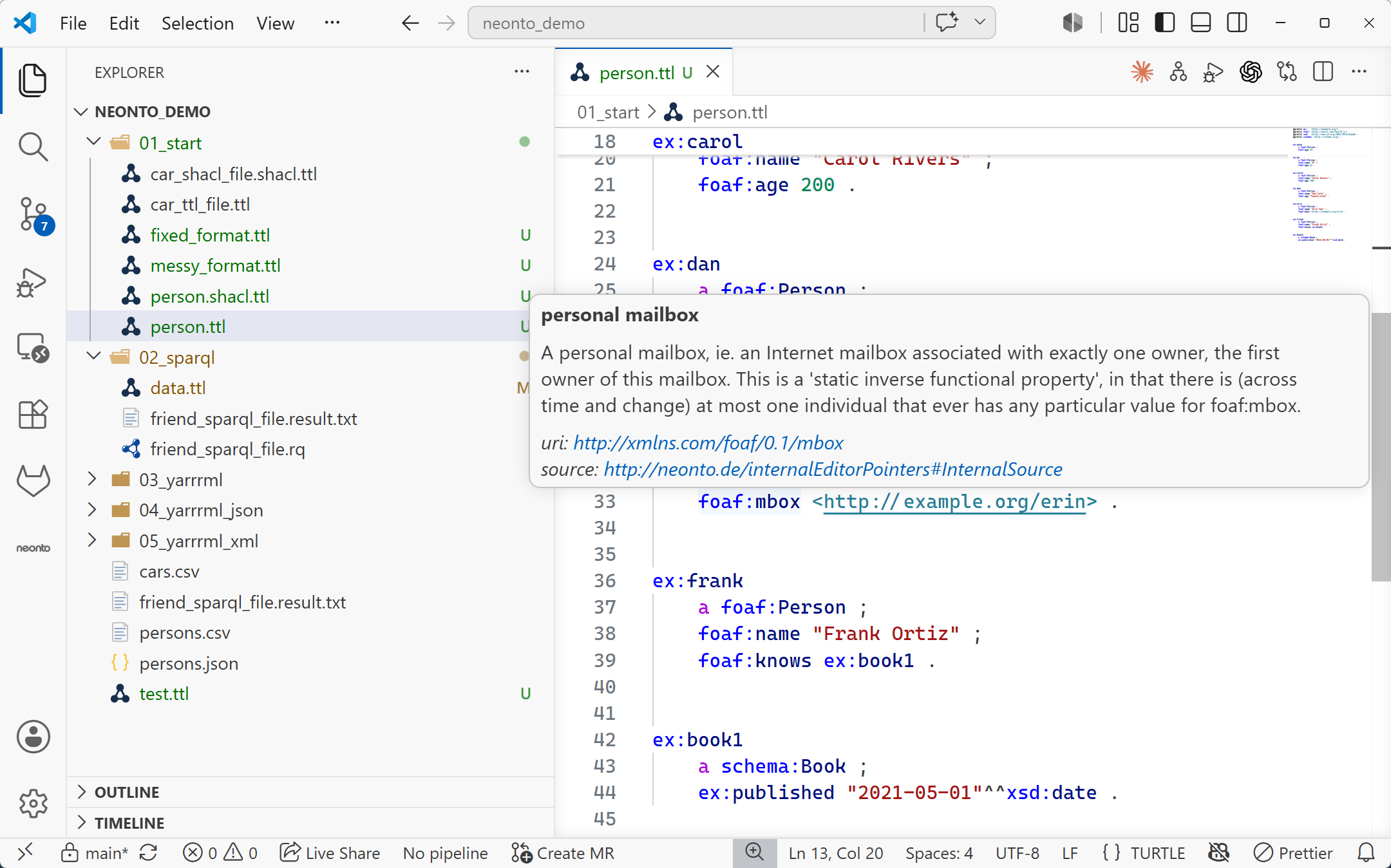
Hover over a term (a class, property, or prefix) to see its label, description, and other metadata pulled from the matching vocabulary.
Controlling which labels and languages appear
Three settings determine what text neonto shows for a resource in hover tooltips and completion details:
neonto.langServer.labelIris— the properties treated as a resource's display label, checked in order. Defaults tordfs:labelandskos:prefLabel.neonto.langServer.commentIris— the properties treated as a resource's description, checked in order. Defaults tordfs:commentandskos:definition.neonto.langServer.preferredLanguages— an ordered list of language tags used to pick which language-tagged value to display when a label or comment has several (e.g.rdfs:label "Cat"@envs."Katze"@de). Defaults to["en"].
If a resource has label or comment values in different languages, neonto uses the first match in preferredLanguages. If no preferred language is available, it uses any available value. Add or reorder entries in these settings to match the languages and vocabularies you use. Open Settings with Ctrl+,, then search for neonto.langServer.
Autoformatting
Two formatting shortcuts are available in .ttl/.shacl files:
Alt+Shift+F— format the whole document.Ctrl+K Ctrl+F— format the current selection.
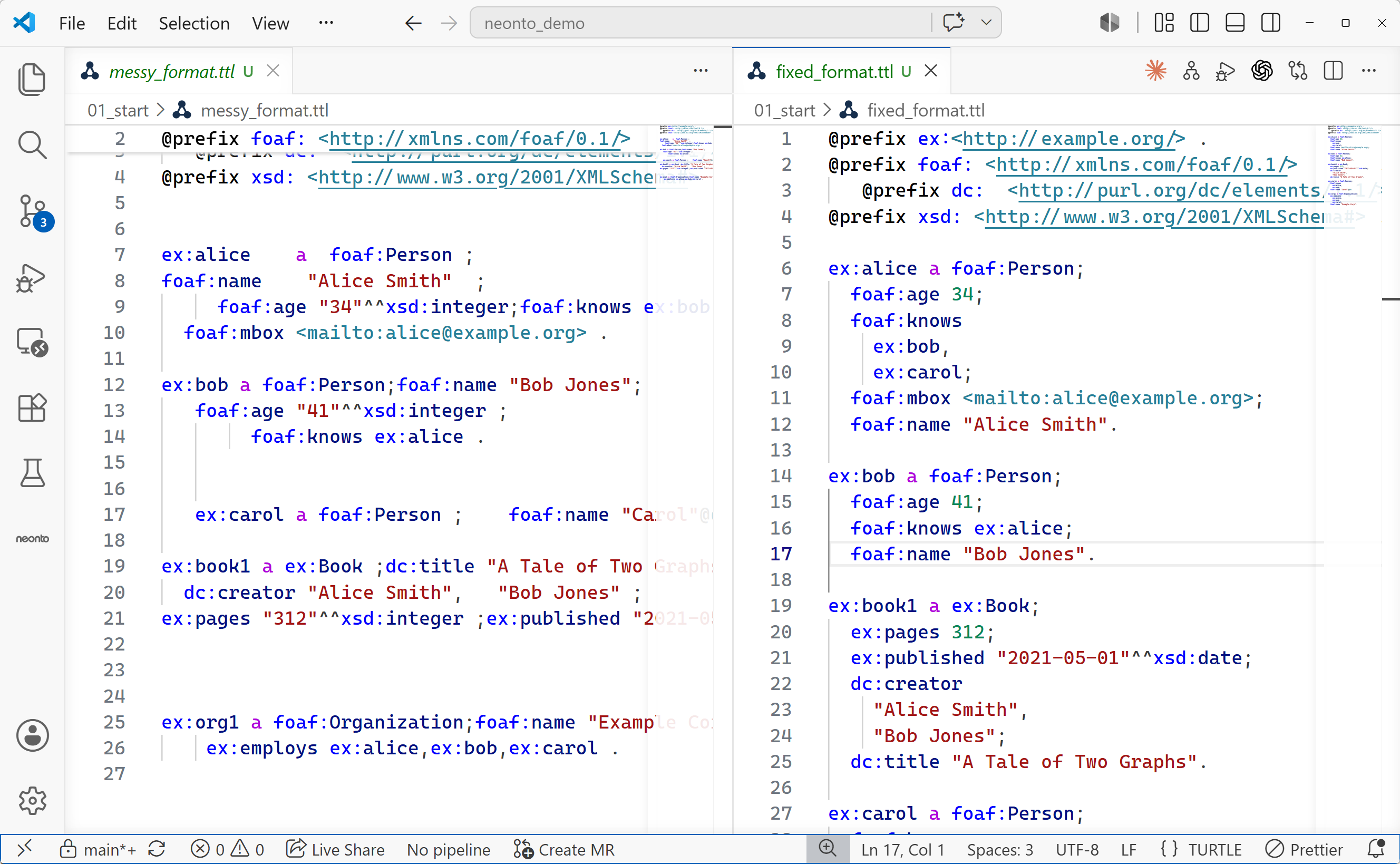
The formatter re-serializes triples into a consistent, readable style while preserving full-line and inline comments. Two settings control its output style:
| Setting | Default | Effect |
|---|---|---|
neonto.langServer.turtle.periodOnNewLine | false | If true, the statement-terminating . is placed on its own line instead of trailing the last triple. |
neonto.langServer.turtle.abbreviateRdfType | true | If true, rdf:type is written using the a shorthand; if false, rdf:type is spelled out. |
Example
Before formatting (default settings):
@prefix ex: <http://example.org/> .
@prefix rdf: <http://www.w3.org/1999/02/22-rdf-syntax-ns#> .

ex:Alice rdf:type ex:Person ; ex:knows ex:Bob .
After running Alt+Shift+F with the defaults (abbreviateRdfType: true, periodOnNewLine: false):
@prefix ex: <http://example.org/> .
@prefix rdf: <http://www.w3.org/1999/02/22-rdf-syntax-ns#> .

ex:Alice a ex:Person ;
    ex:knows ex:Bob .
TriG
TriG (.trig) files extend Turtle with named graphs and receive the same core language features — syntax highlighting, completion, diagnostics, hover, and rename. The autoformatter is not available for TriG.