SHACL Reports & UI
Generate a shareable SHACL validation report as Turtle, or open a graphical view of a shapes file for constraint inspection and form generation.
Generate a validation report
Before generating a report, make sure a validation connection exists between your shapes file and data file — see SHACL Validation.
Run neonto: Run Validation and Generate SHACL Report from the Command Palette or the context menu in the SHACL Validations view.
This runs the same validation as neonto: Run SHACL Validation, but additionally opens the full result as a sh:ValidationReport in a new Turtle editor tab, alongside the usual Problems panel diagnostics.
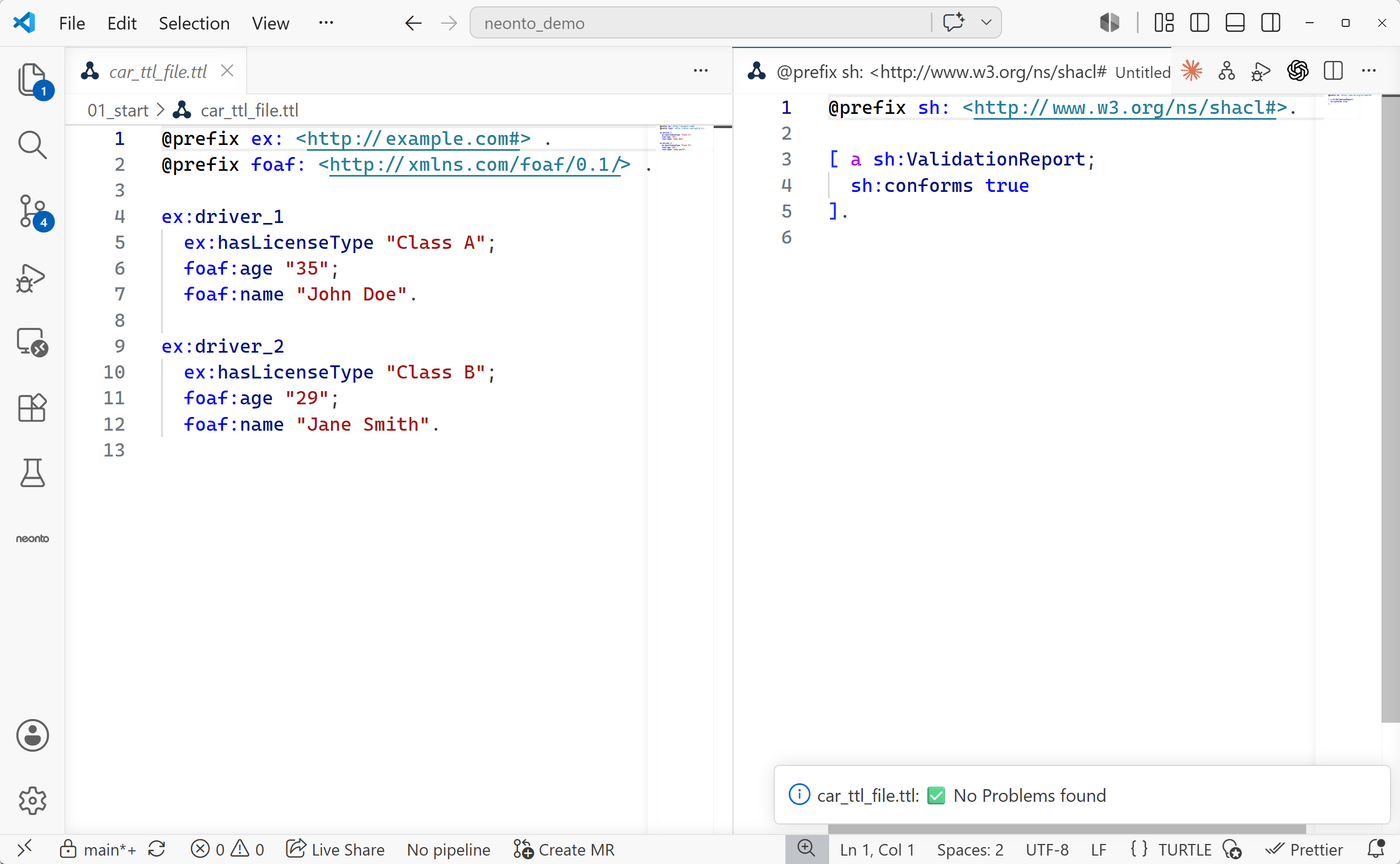
A report is an RDF graph, so it can be read like any other Turtle document:
sh:conformsistrueorfalsefor the whole report.- Each
sh:resultis ash:ValidationResultwith:sh:focusNode— the resource that failed a constraint.sh:resultPath— the property involved.sh:resultSeverity—sh:Violation,sh:Warning, orsh:Info.sh:resultMessage— a human-readable explanation.sh:sourceConstraintComponent/sh:sourceShape— which shape and constraint triggered the result.
Because the report is a plain Turtle file, you can save it, diff it, or feed it into another tool.
Visualize SHACL shapes
Run neonto: Visualize SHACL UI from the Command Palette or the context menu on a shapes-file entry in the SHACL Validations view.
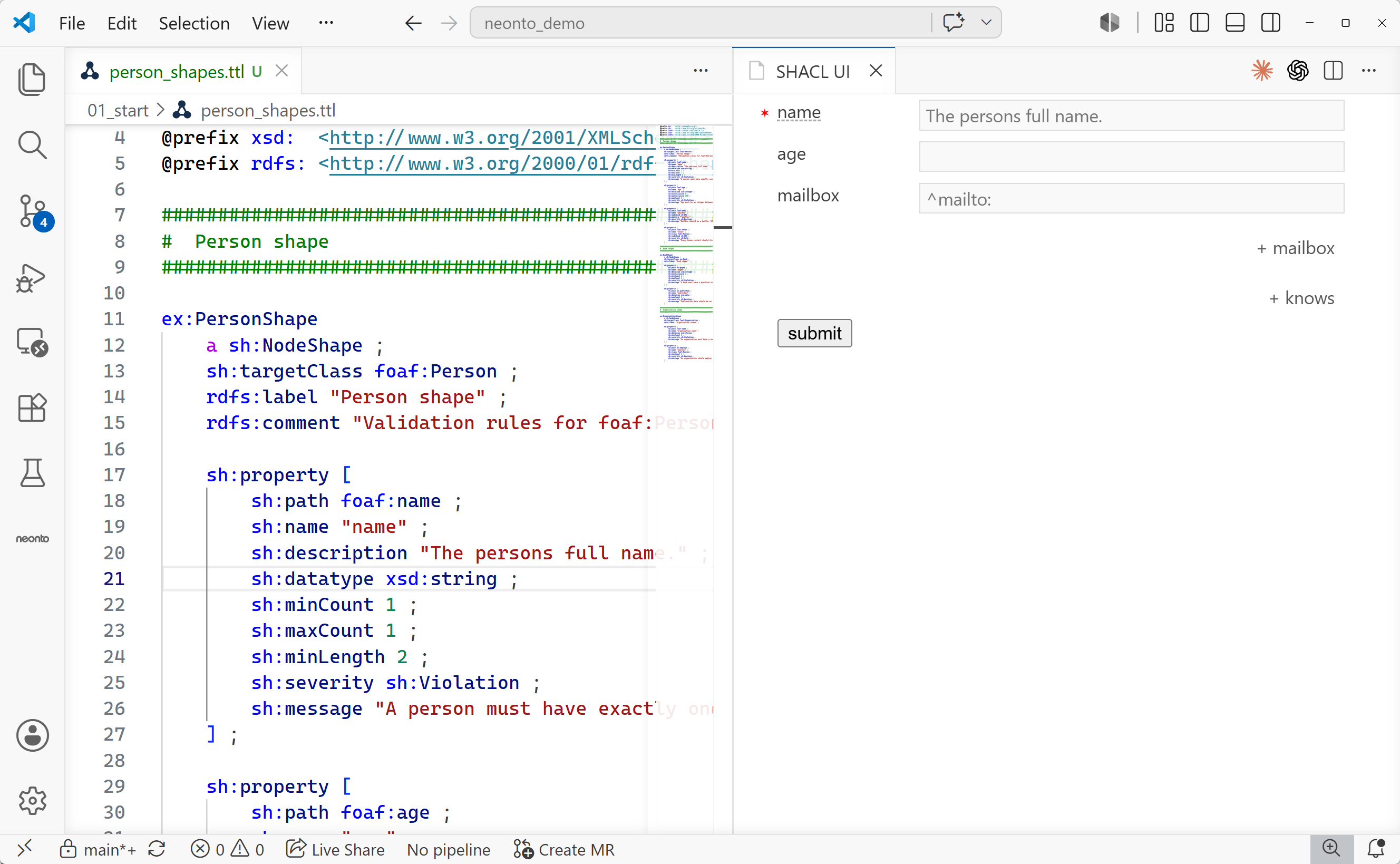
This command opens the SHACL UI webview beside the editor. The webview renders the active SHACL shapes file as an interactive form. The form uses property ranges, cardinalities, and value types. Use it to:
- Inspect a shapes file's structure without reading raw Turtle.
- Fill in the generated form and submit it to create an RDF instance document that conforms to the shapes. The result opens as a new Turtle document.
The webview reloads automatically whenever you save the underlying shapes file.