SHACL Validation
SHACL lets you declare constraints on RDF data. These constraints include required properties, value ranges, and cardinalities. neonto editor checks them automatically. Violations appear as squiggles and Problems-panel entries.
How it works
A validation connection links a SHACL shapes file (.shacl or .shacl.ttl) to the RDF data file it validates. neonto checks the data against every constraint in the shapes file and reports violations in editor diagnostics panel.
neonto creates connections automatically when it finds matching filenames — for example person.shacl.ttl next to person.ttl. You can also add or remove connections manually at any time. All connections persist across VS Code sessions.
The SHACL Validations view
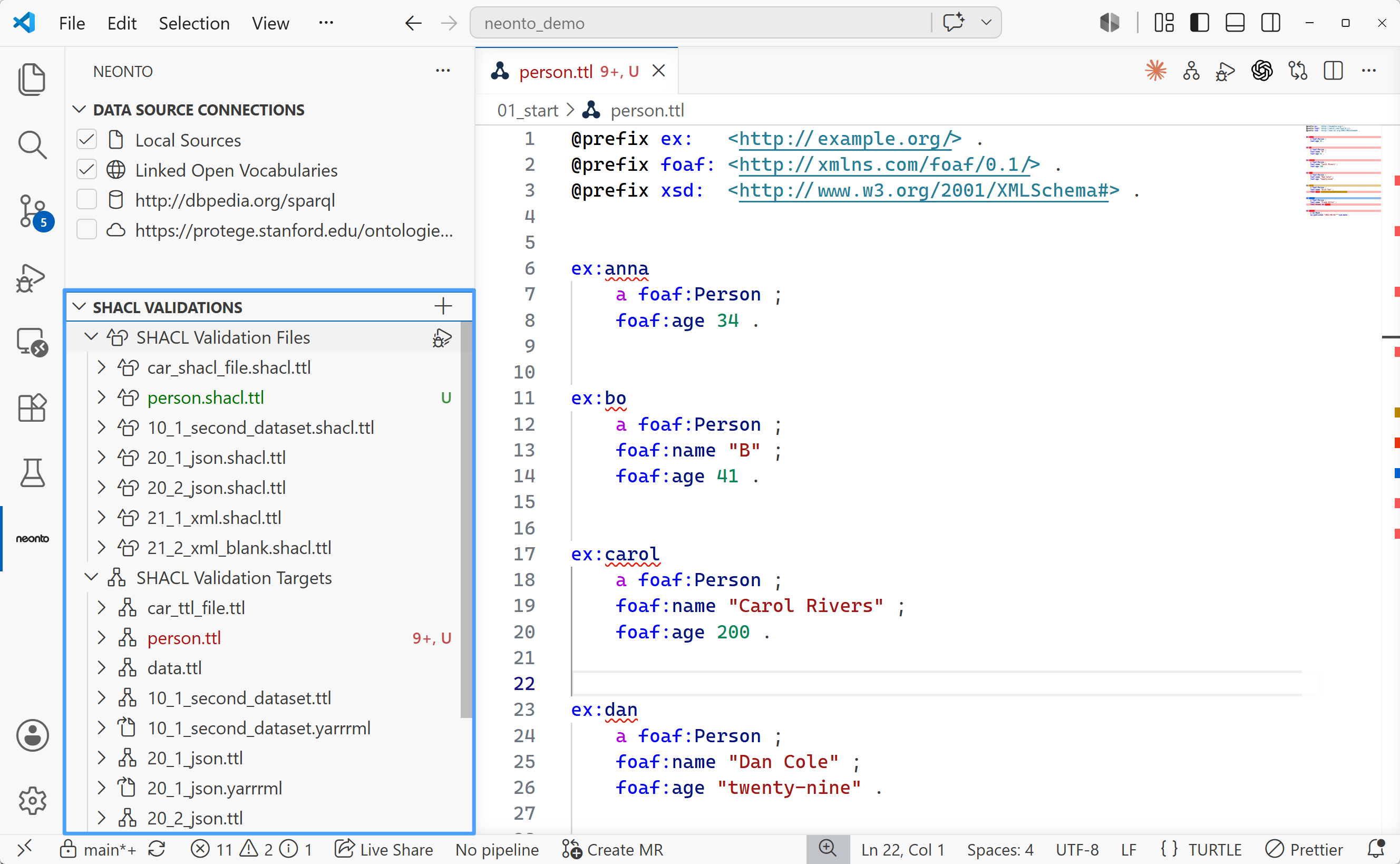
Open the neonto sidebar to find the SHACL Validations view. It shows validation connections in one tree view with two categories:
- SHACL Validation Files: Lists each SHACL shapes file in the workspace (
.shacl,.shacl.ttl, and related files). Expand a shapes file to see its connected RDF data files (.ttl) or YARRRML mappings. - SHACL Validation Targets: Lists each RDF data file that neonto validates. Expand a data file to see its SHACL shapes files.
Click a file item in either tree to open it in the editor. You can also right-click a file to run validation directly.
Managing connections
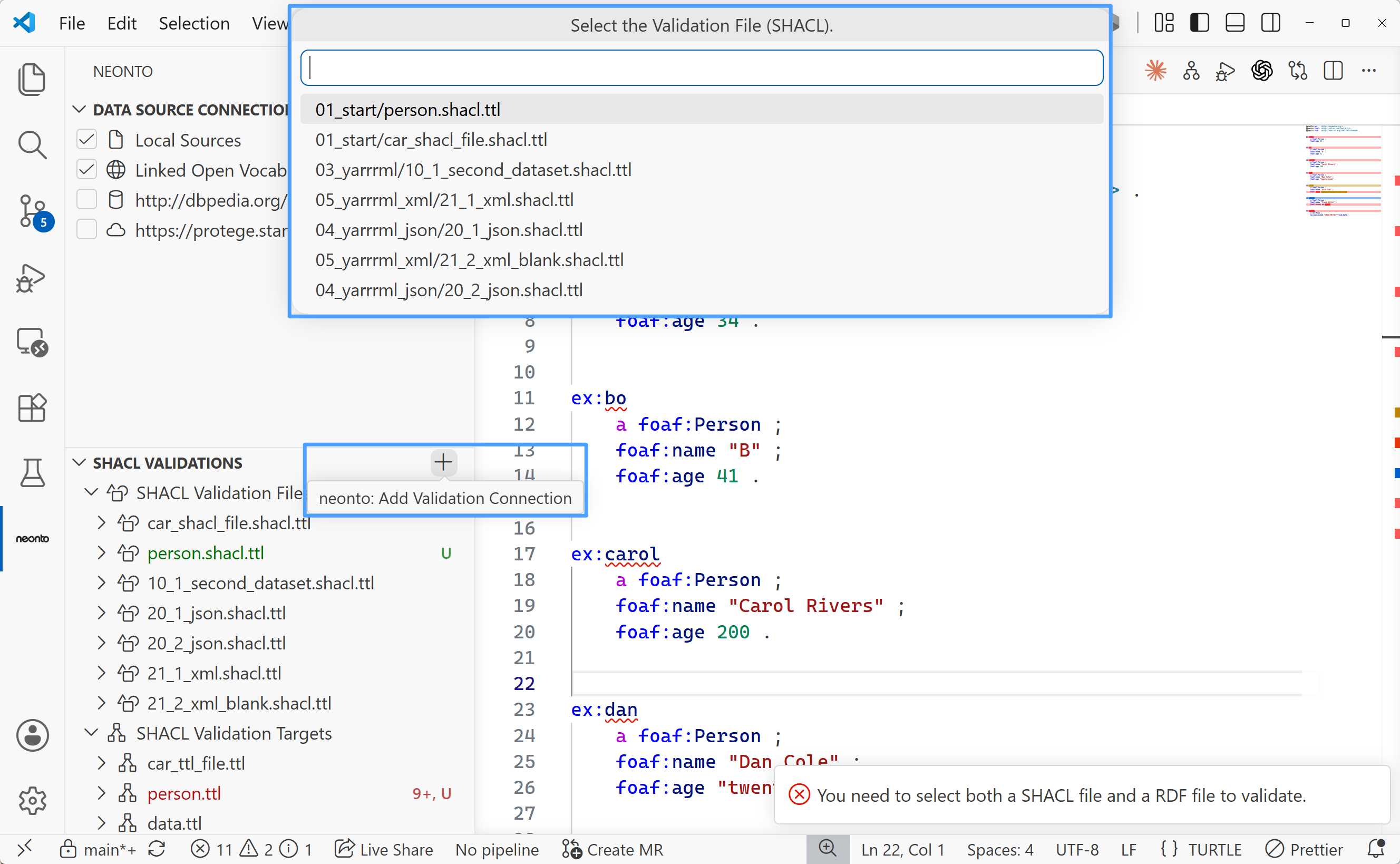
Add a connection
- Click the
+button on the SHACL Validations view title bar, or runneonto: Add Validation Connectionfrom the Command Palette. - Pick the RDF data file (or YARRRML mapping) to validate.
- Pick the SHACL shapes file to validate it against.
Remove a connection
Run neonto: Remove Validation Connection from the Command Palette. You can also use the inline action on a connected entry. Then confirm the connection to remove.
You cannot remove connections that neonto detects from matching filenames. For example, this applies to test.ttl and test.shacl.ttl. Rename one of the files to remove the connection.
Running validation
Validate a single file
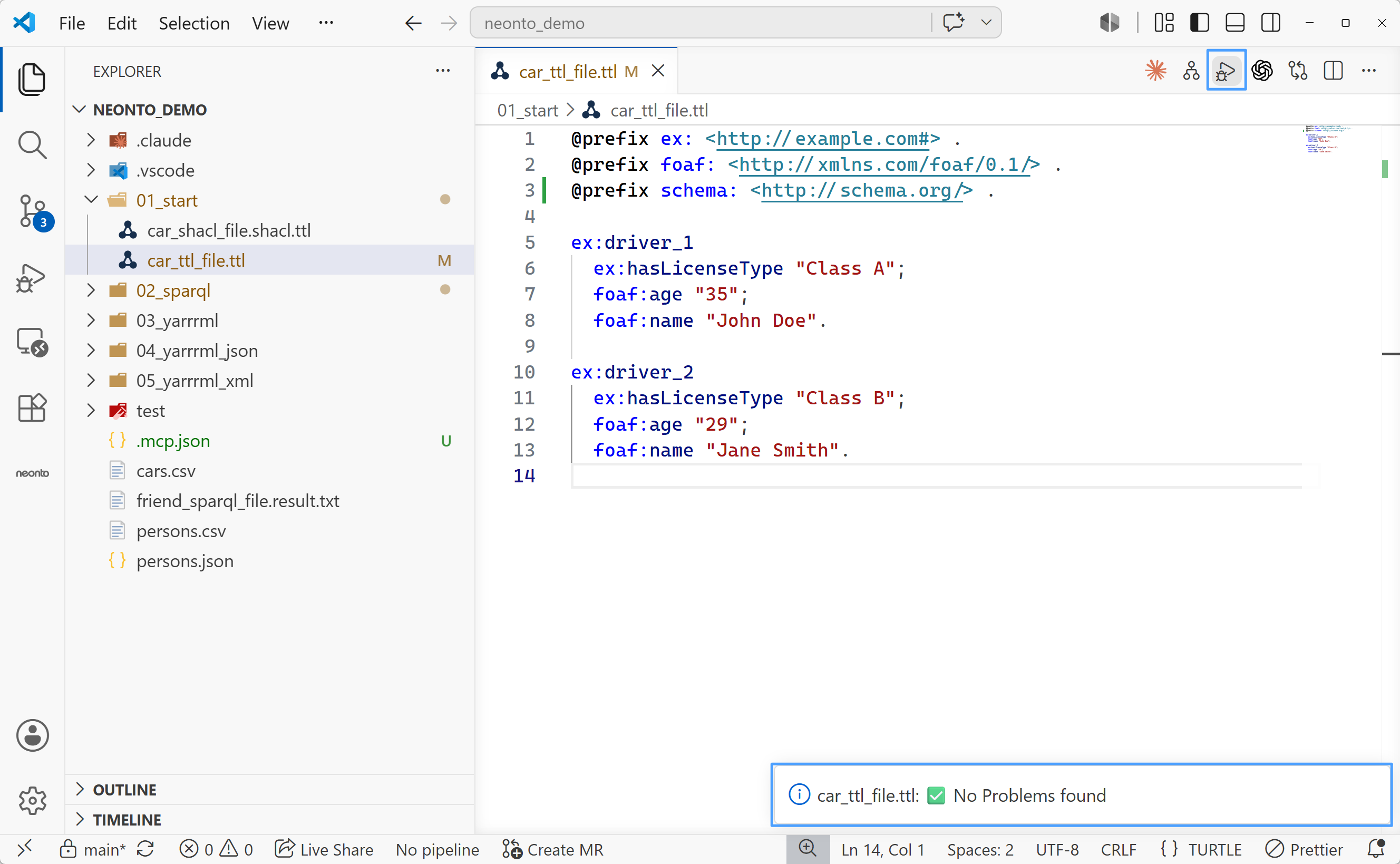
Run neonto: Run SHACL Validation from the Command Palette. You can also click the editor-title button on an open Turtle or SHACL file. If the file has no connection, neonto prompts you to create one.
Validate all files at once
Run neonto: Run All SHACL Validations from the Command Palette to check every mapped shapes/data pair in the workspace.
Live validation while editing
neonto also validates automatically as you type. It uses the live diagnostics file-size limit from neonto.langServer.liveDiagnosticsMaxFileSizeKb. The default limit is 1024 KB. Files above the limit do not get live validation. Run the on-demand command instead.
Reading the results
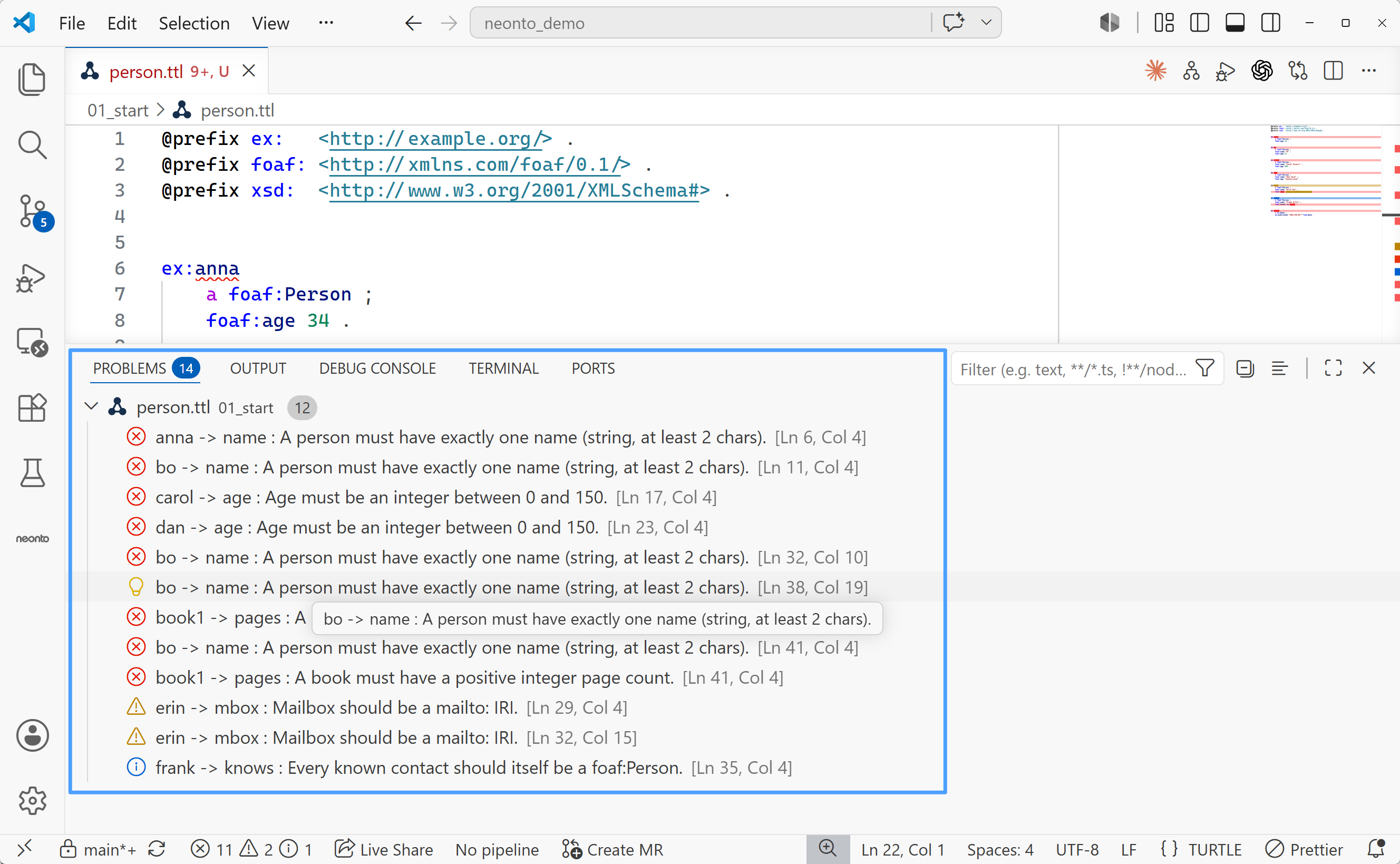
Violations, warnings, and info-level results appear in two places:
- In the editor — the offending term is underlined with a squiggle matching the severity.
- In the Problems panel (
Ctrl+Shift+M) — entries are grouped by file and severity: Error forsh:Violation, Warning forsh:Warning, Information forsh:Info.
For a shareable validation report as Turtle, or an interactive graphical view of your shapes, see SHACL Reports & UI.