Working with SPARQL
SPARQL files (.sparql, .rq) get full language support — completion, diagnostics, and one-click execution against any of your active data sources.
Authoring
Open or create a .sparql or .rq file to get syntax highlighting for SPARQL keywords, variables, prefixes, IRIs, and literals.
Completion
Press Ctrl+Space inside a query to trigger autocompletion. neonto gets suggestions from active data sources. These include local workspace RDF files, SPARQL endpoints, remote RDF files, and built-in vocabularies. Built-in vocabularies include SHACL, FOAF, Schema.org, and XSD. See Managing Data Sources for the full list. See Working with Turtle to control labels and languages.
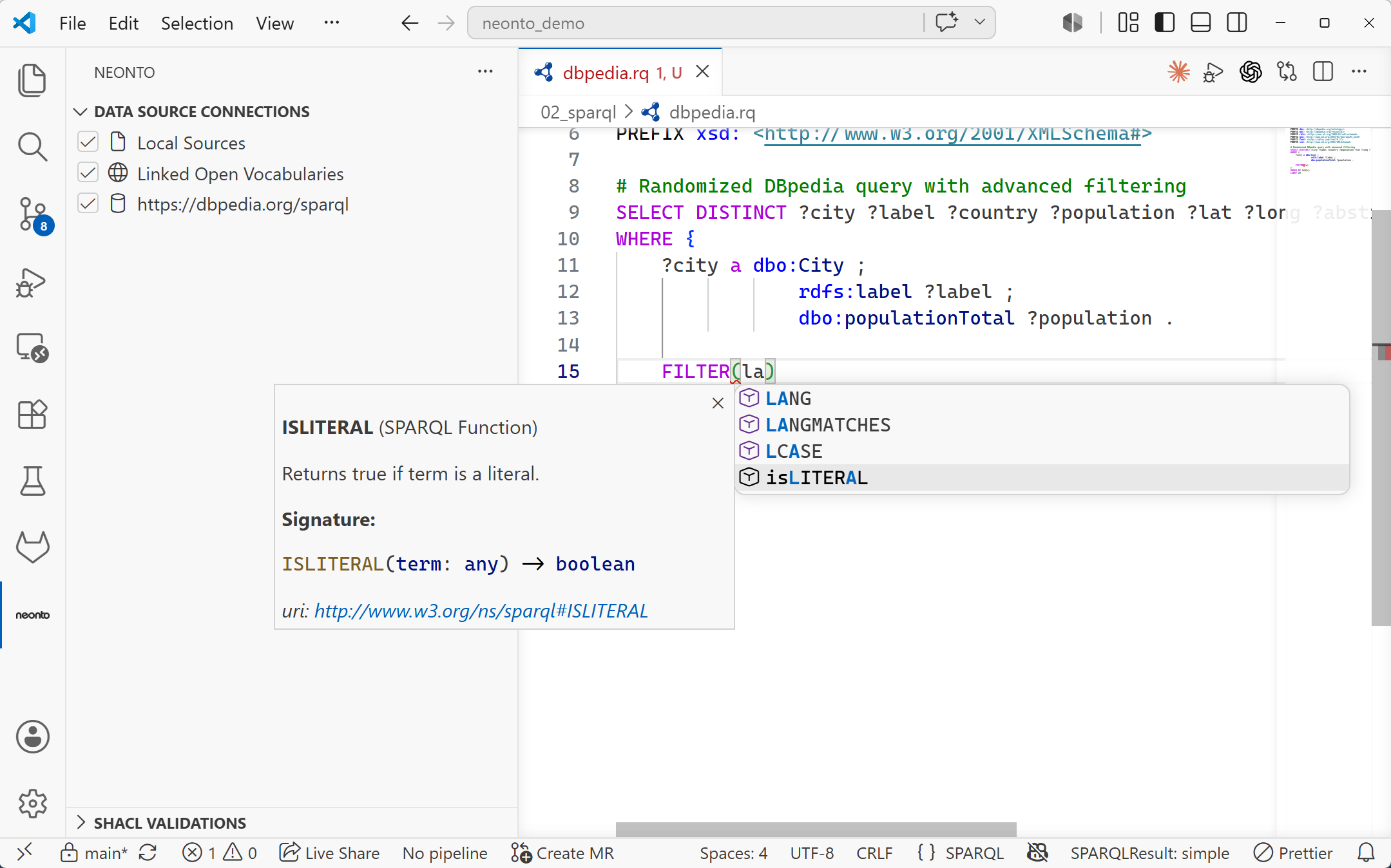
neonto also completes SPARQL built-in functions such as LANG, LANGMATCHES, and isLITERAL. The detail panel shows each function's signature and description.
Hover documentation
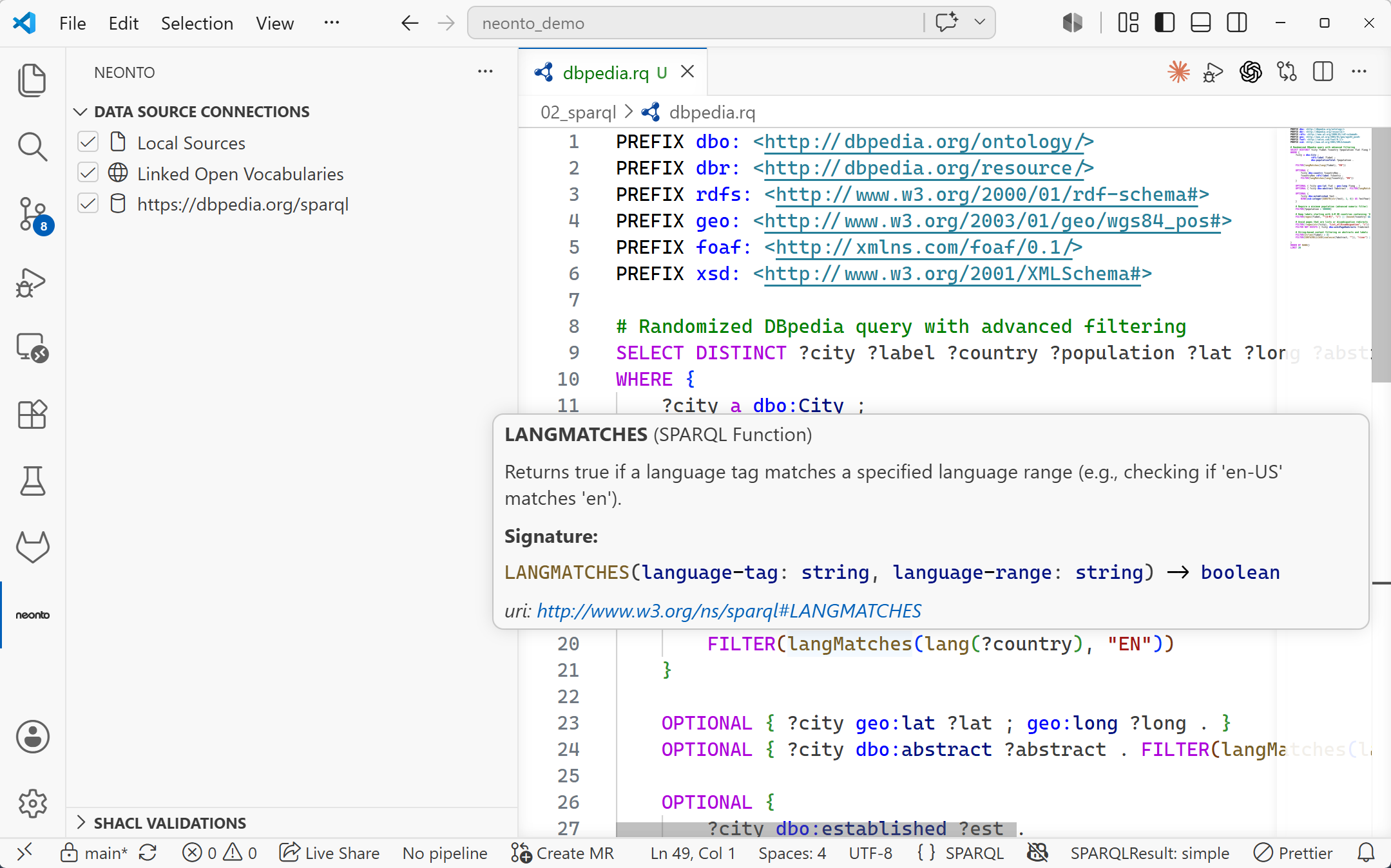
Hover over a term in the query to see its label, definition, full IRI, and the data source it was resolved from:
Prefix management
neonto suggests well-known PREFIX declarations from prefix.cc and the vocabularies in scope. Type an undeclared prefix to make neonto offer its declaration. This works the same way as in Turtle files.
Diagnostics
neonto highlights errors and warnings as you type, on save, or when you open a file. The behavior depends on your settings. neonto also warns when a prefixed term does not resolve in a vocabulary or active data source. It reports this as an "unknown term" diagnostic for the relevant vocabulary or prefix.
Data sources and endpoints
Configure at least one data source before you run a query. neonto can query these target types:
- Local workspace files — any
.ttl,.rdf,.jsonld, or related RDF file in your workspace is indexed automatically. - SPARQL endpoints — remote triple stores you can query directly.
- Remote or filesystem RDF files — external ontologies added via URL or file picker.
Manage all sources from the Data Source Connections view in the neonto sidebar. To add a SPARQL endpoint, click the + button. Select Add SPARQL Endpoint, then enter the endpoint URI. For endpoints that require authentication, see Endpoint Credentials.
For a full walkthrough of adding, previewing, and toggling data sources, see Data Sources.
Running a query
You can run the query in the active editor in three ways:
- Command Palette (
Ctrl+Shift+P/F1) →neonto: Run SPARQL Query. - The editor-title button shown on
.sparql/.rqfiles. - The context menu on an entry in the Data Source Connections view.
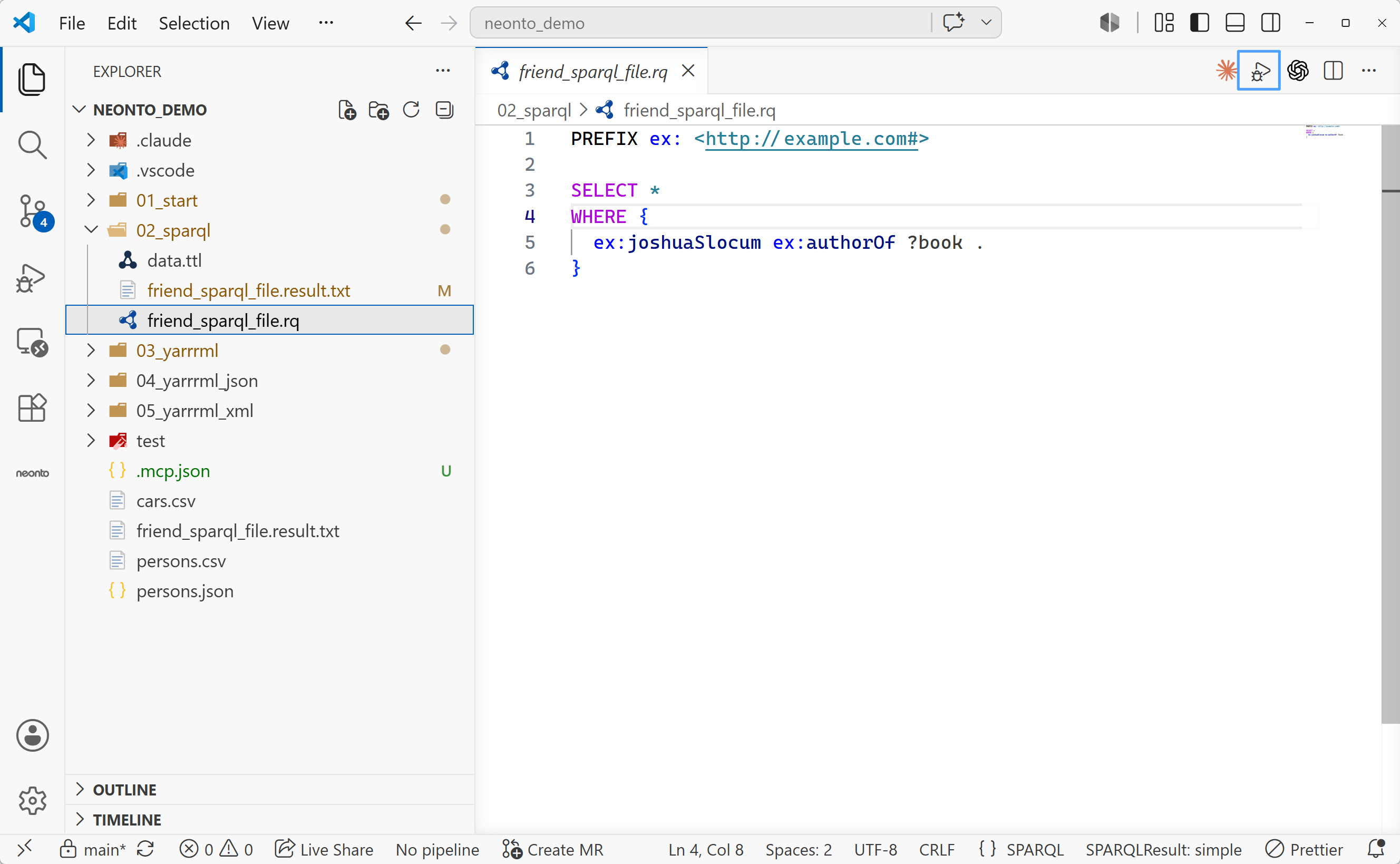
When you run a query, select the data source to query. You can select Internal / External Files, one workspace file, one external source, or a configured SPARQL endpoint.
neonto stops queries that exceed neonto.langServer.sparqlQueryTimeout. The default is 5000 ms. You can set a value from 2000 to 20000.
Choosing the result format
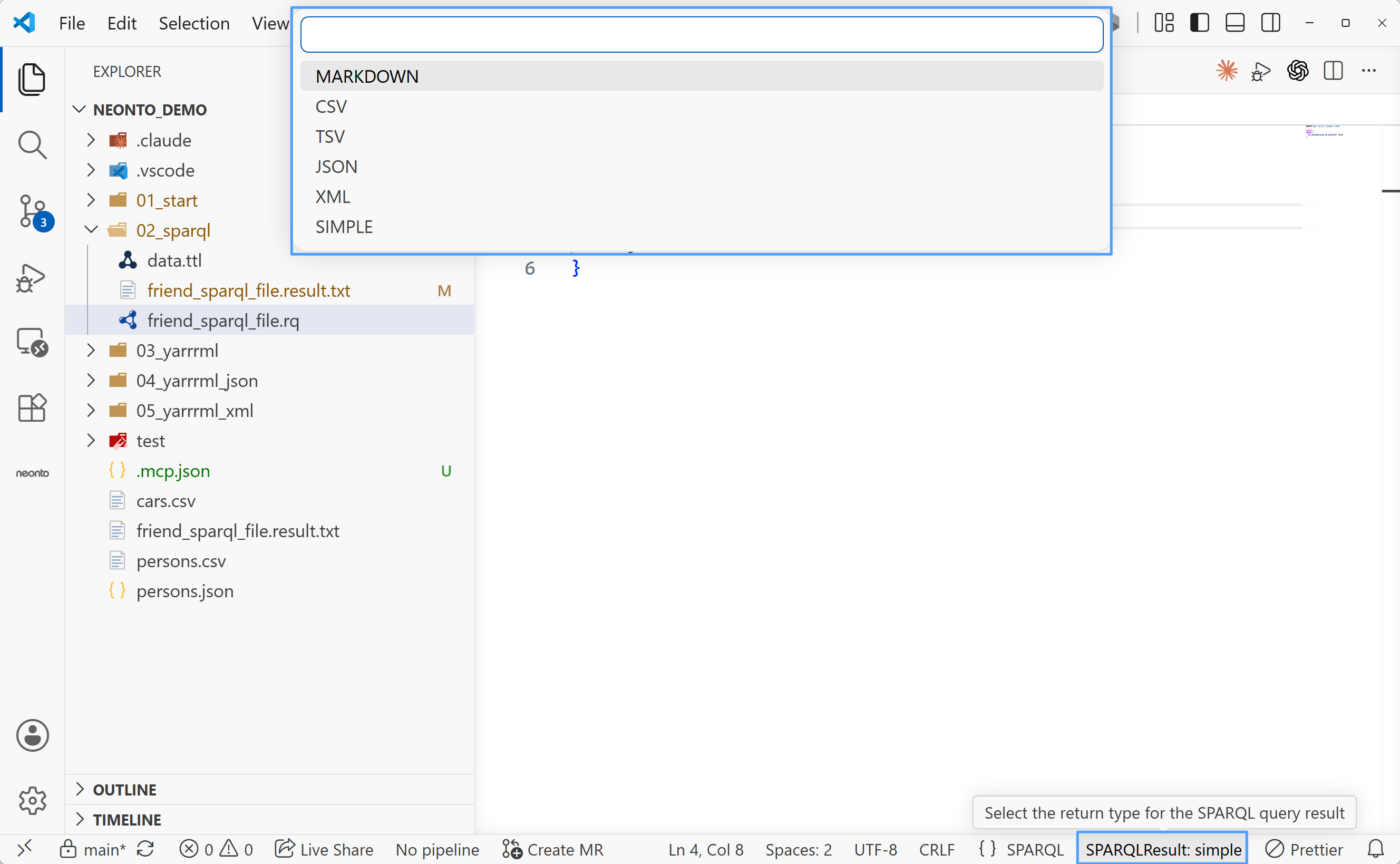
Pick the return format with either:
- The Command Palette command
neonto: Select Return Value of Query Type, or - Clicking the result-type item in the status bar (bottom right, visible while a SPARQL file is active).
Available formats depend on the query type:
- SELECT queries: Markdown table, CSV, TSV, JSON, XML, or a simple text format.
- CONSTRUCT queries: TriG, JSON-LD, N-Quads, N-Triples, Turtle, Markdown table, or simple.
- ASK queries: the boolean result is shown directly as an information message.
Where results appear
neonto shows query results in a progress notification while the query runs. The selected format shows inline output or opens a result for inspection. You can review bindings in VS Code.
For example, the simple format opens bindings in a .result.txt document beside the query file: